eSSL Biometric Attendance Integration User Guide
This guide explains how the eSSL Integration app brings punches from your
biometric device into Frappe HR, how to keep it healthy, and how to read every
report and the dashboard. It is written for HR and admin users — no coding needed.
1. What this app does
Your biometric device records a punch every time an employee places a
finger / card on a reader. This app:
- Fetches those punches from the device over its network API.
- Creates an Employee Checkin in Frappe HR for each punch.
- Lets Frappe HR's standard auto‑attendance turn those check‑ins into Attendance records (working hours, late entry, etc.).
It runs automatically every hour, and because the device is often only
reachable on the office network, it keeps retrying through the day until the
day's punches come through. You normally never touch it after the one‑time setup.
Key idea: one punch on the device = one Employee Checkin in Frappe.
"Employee Checkin" is just Frappe's name for any punch — both arrivals and
departures are captured.
2. One‑time setup — ESSL Settings
Open ESSL Settings (search "ESSL Settings" in the awesome bar).
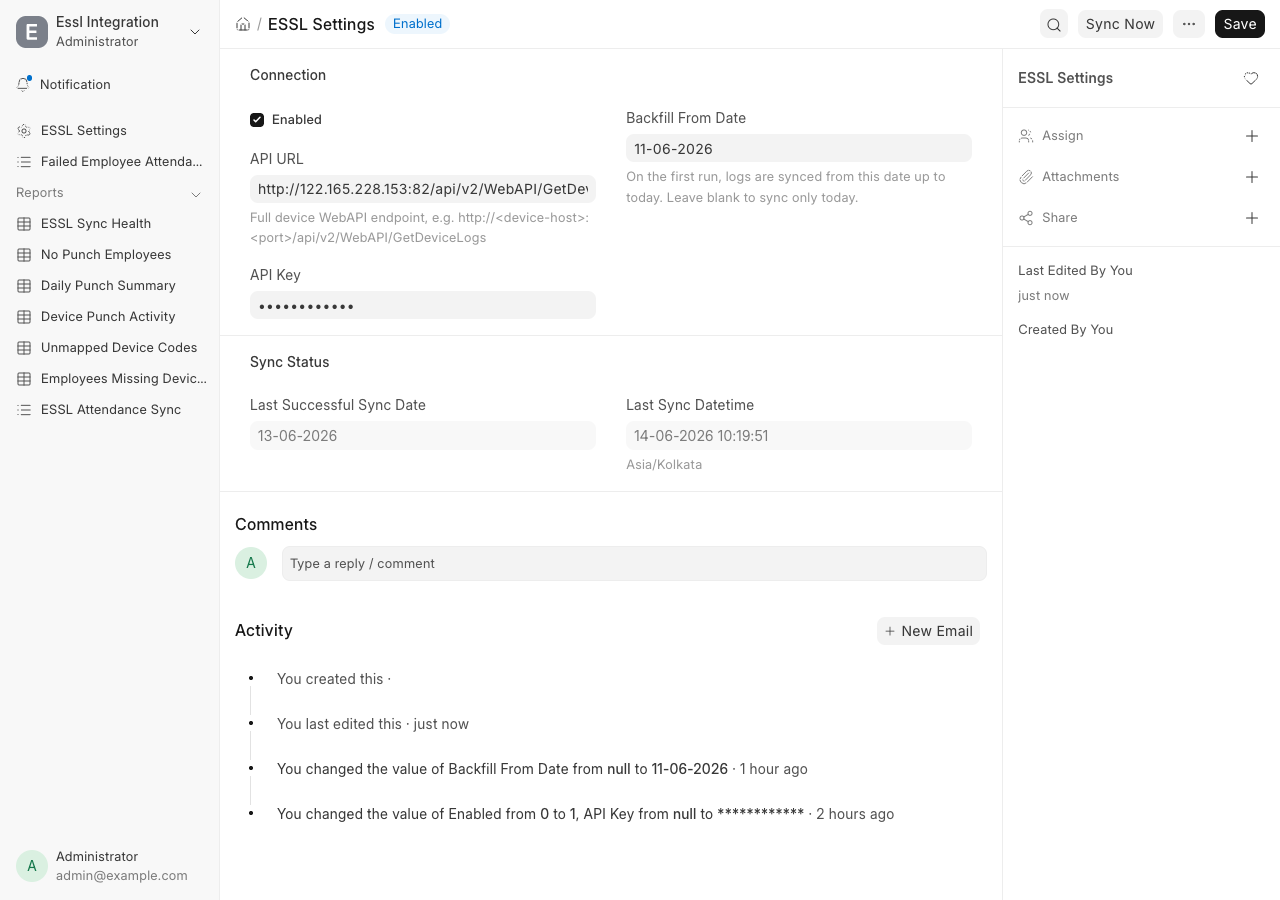
| Field | What to enter |
|---|---|
| Enabled | Tick this to switch the hourly sync on. Untick to pause it. |
| API URL | The device's WebAPI endpoint, e.g. http://<device-host>:<port>/api/v2/WebAPI/GetDeviceLogs |
| API Key | The device API key (stored encrypted, shown masked). |
| Backfill From Date | Optional. On the very first run, pulls history from this date up to today. Leave blank to sync only from today onward. |
| Last Successful Sync Date | Read‑only. The last day fully synced. |
| Last Sync Datetime | Read‑only. When the last successful sync ran. |
The "Sync Now" button
Top‑right of the form. Use it to pull a specific date range on demand
(e.g. to backfill last week) without waiting for the hourly job. It asks for a
From and To date and runs in the background.
Important — for Attendance to be generated: each employee must have their
Attendance Device ID set (matching the code the device sends), and their
Shift Type must have auto‑attendance enabled. Because most eSSL
devices don't label a punch as IN or OUT, set the Shift Type's "Determine
Check‑in and Check‑out" to "Alternating entries as IN and OUT during the
same shift" — Frappe then pairs punches by time (first = IN, next = OUT).
3. How the automatic sync behaves
- Every hour, the app checks the device and pulls today's punches.
- Today is re‑pulled every hour, so punches added later in the day (e.g.
evening check‑outs) are always captured. Re‑pulling never creates duplicates. - If the device URL is unreachable (off‑network, powered down), the run is
skipped silently and retried next hour — no error spam. - Past days, once synced, are not fetched again.
4. When a punch has no matching employee
If the device sends a code that doesn't match any employee's Attendance
Device ID, the punch can't become a check‑in. Instead of failing silently, the
app records it in Failed Employee Attendance Sync — your worklist of
employees to create or fix.
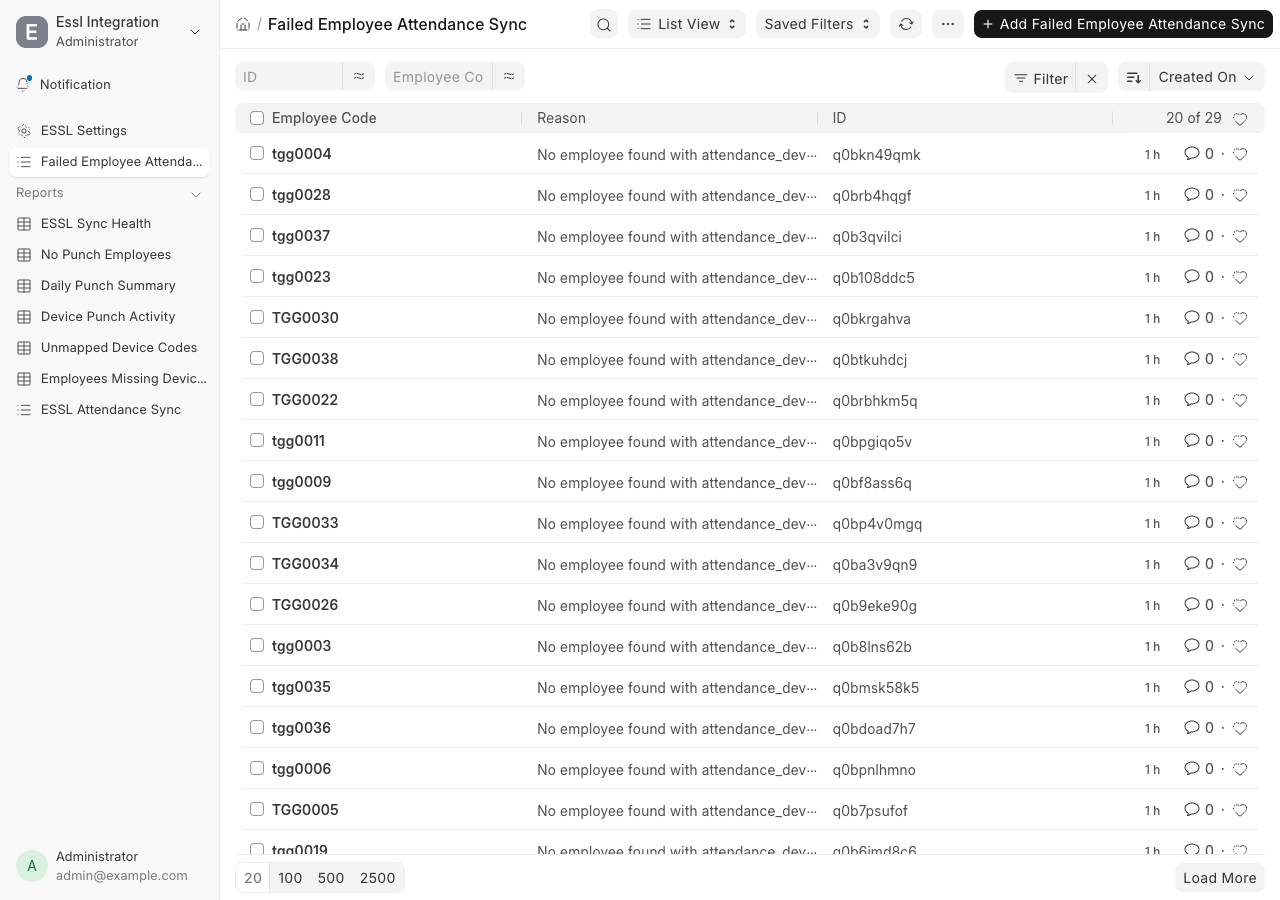
What to do: open the list, and for each code create the matching Employee
(or set the Attendance Device ID on an existing one). The next sync will then
bring those punches in. Each missing code appears once (not once per punch),
so the list stays clean.
5. The Dashboard — "ESSL Attendance Sync"
Open Dashboard → ESSL Attendance Sync for an at‑a‑glance health view.
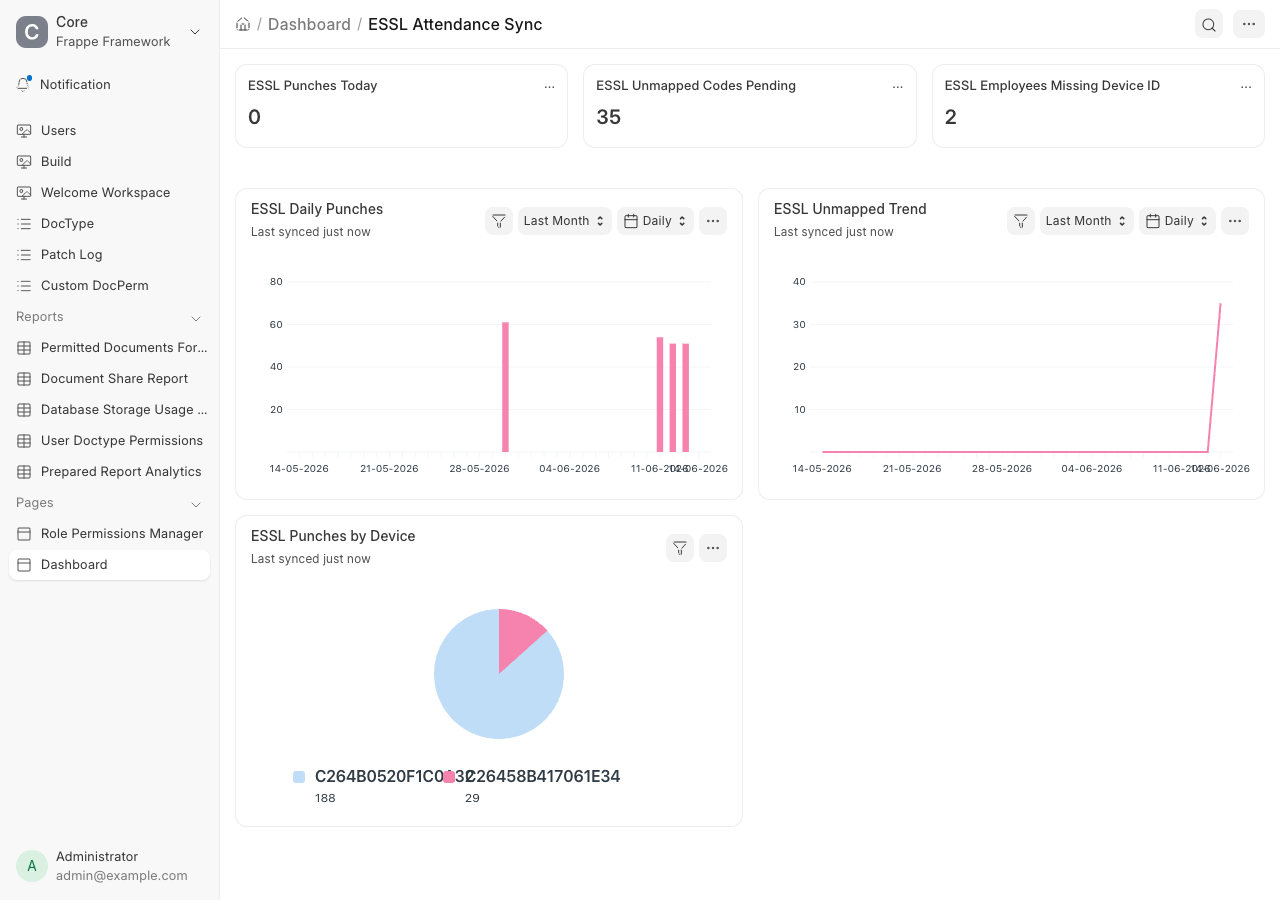
Number cards
- ESSL Punches Today — check‑ins created today.
- ESSL Unmapped Codes Pending — how many device codes still need an employee
(your to‑do count). - ESSL Employees Missing Device ID — active employees who will never sync
until you set their device ID.
Charts
- ESSL Daily Punches — punch volume per day (spot quiet days / outages).
- ESSL Unmapped Trend — unmapped codes appearing over time.
- ESSL Punches by Device — share of punches per physical reader.
6. The Reports
All reports are under the eSSL Integration workspace (left sidebar) and accept
date / department filters at the top.
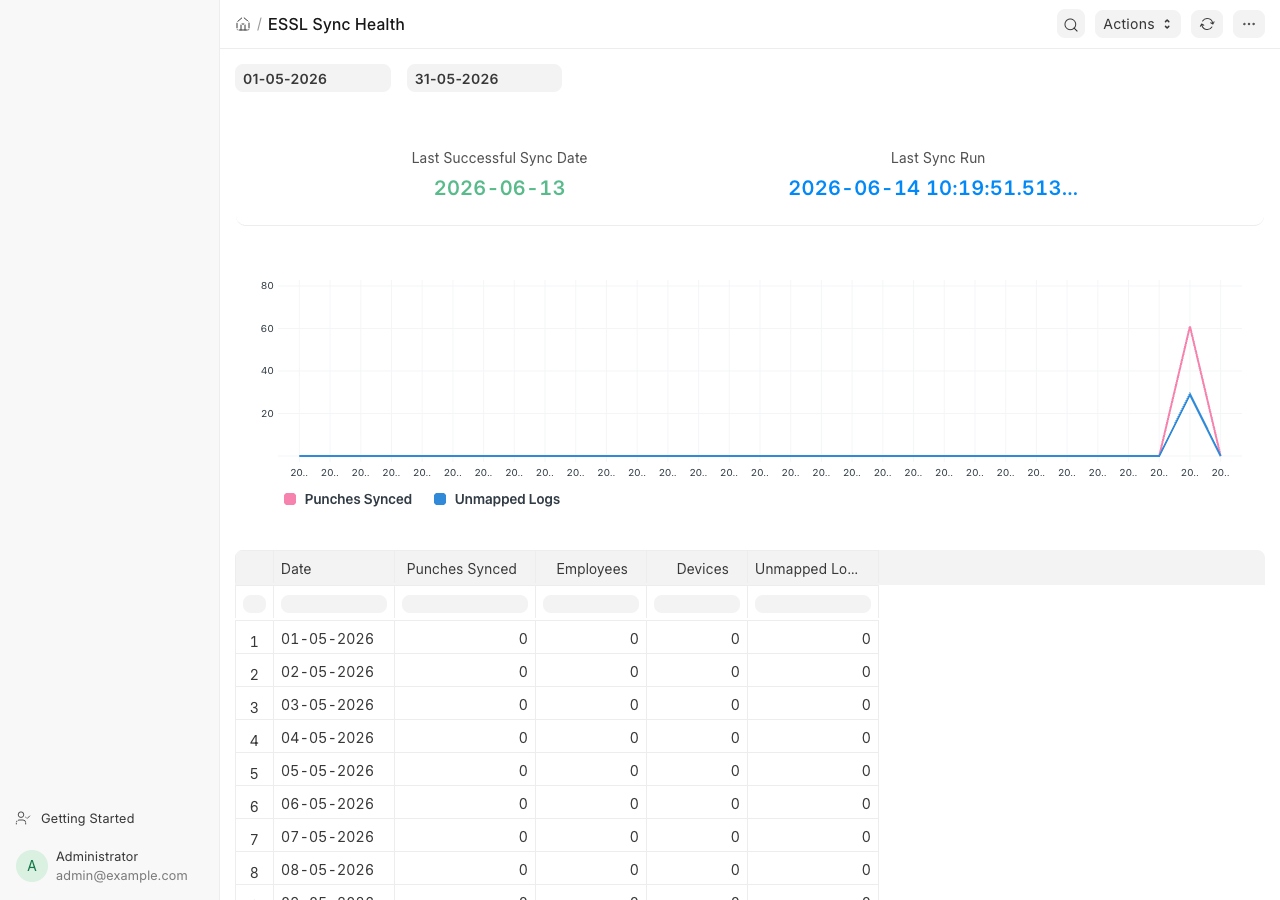
6.1 ESSL Sync Health
Is the sync running and clean? Per day: punches synced, employees covered,
devices reporting, and unmapped logs. The header shows the last successful sync.
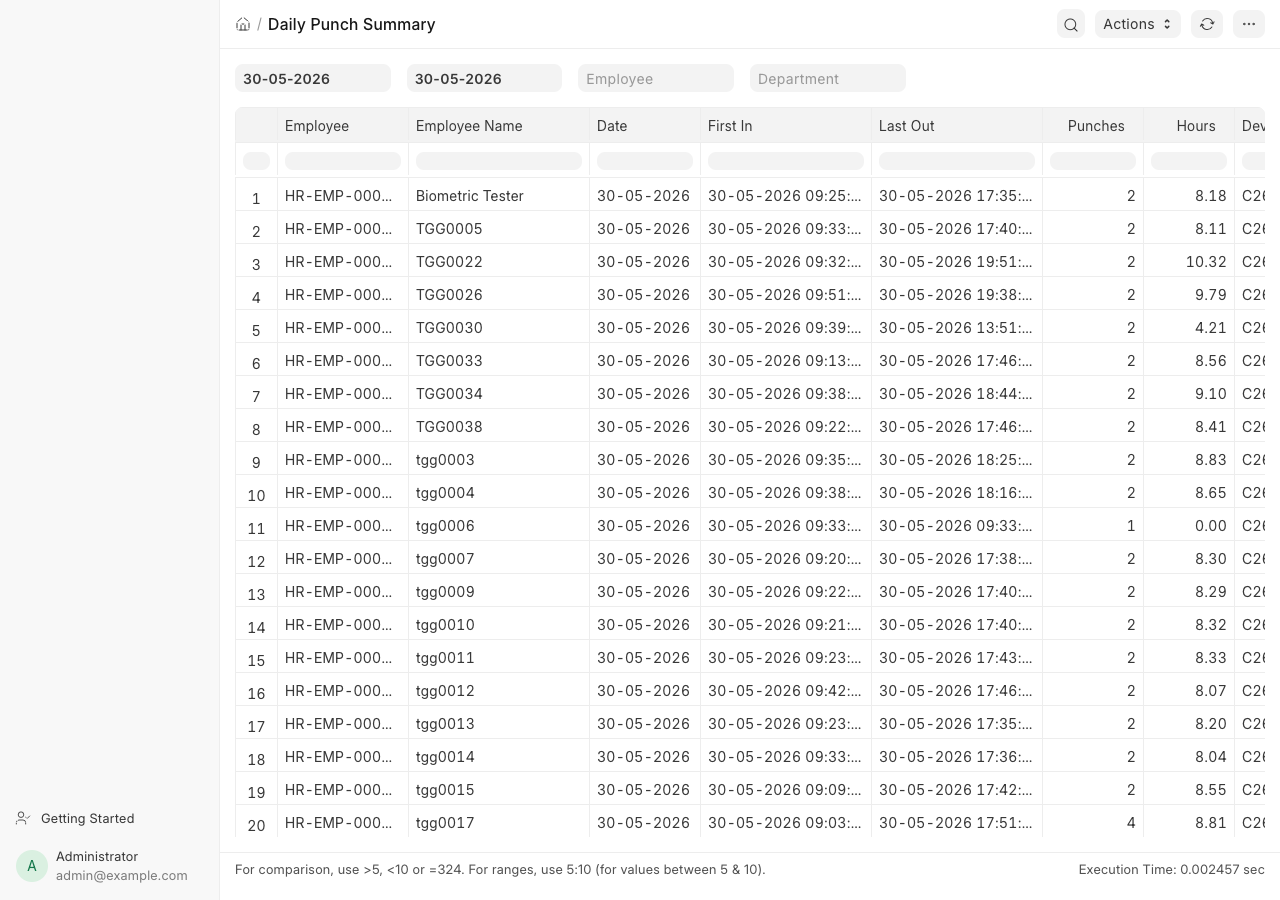
6.2 Daily Punch Summary
Per employee per day: First In, Last Out, number of punches, total
Hours, and which device(s) they used. The everyday "who worked when" view.
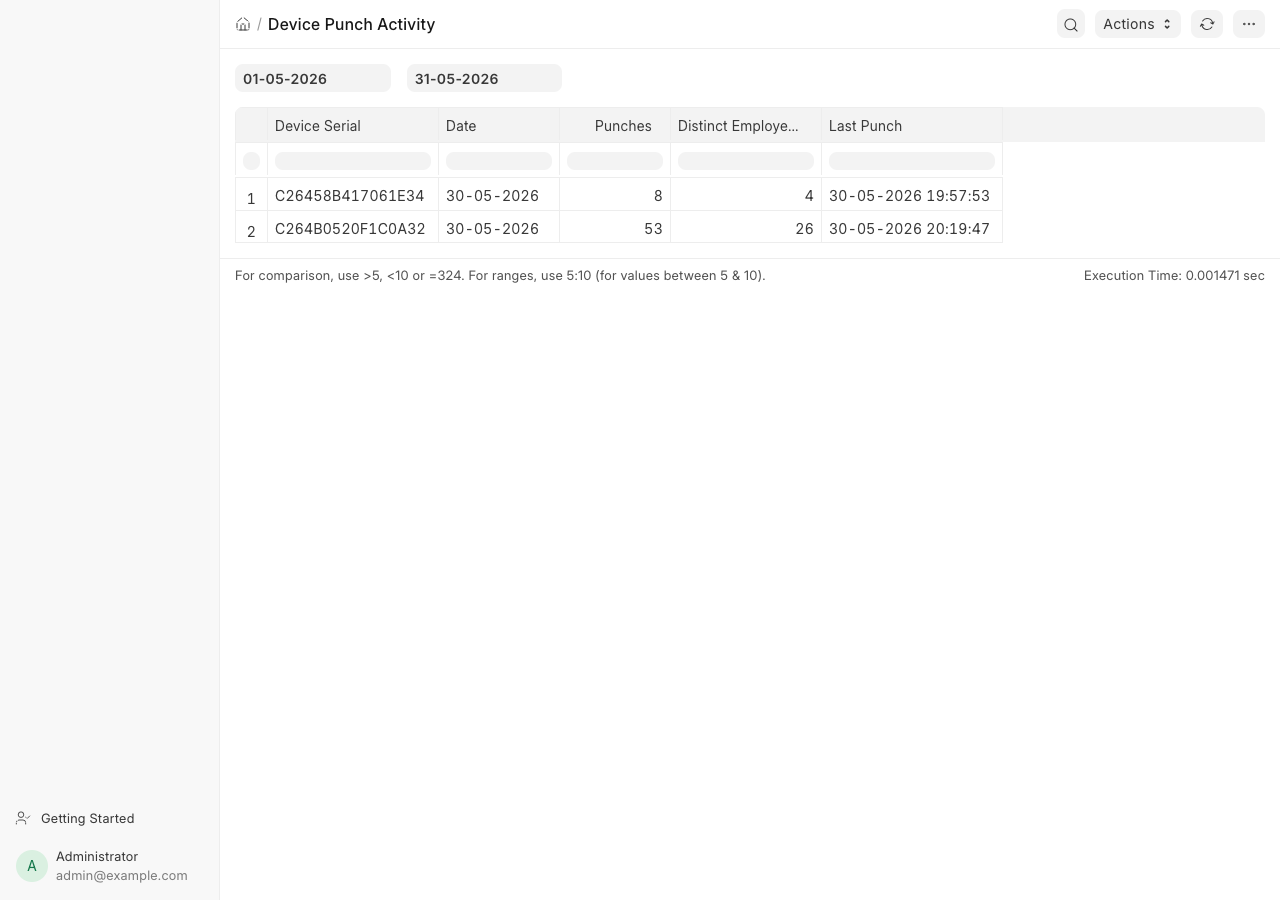
6.3 Device Punch Activity
Per device per day: punch count, distinct employees, and the last punch time.
Use it to spot a dead or failing reader (a device that suddenly stops
reporting).
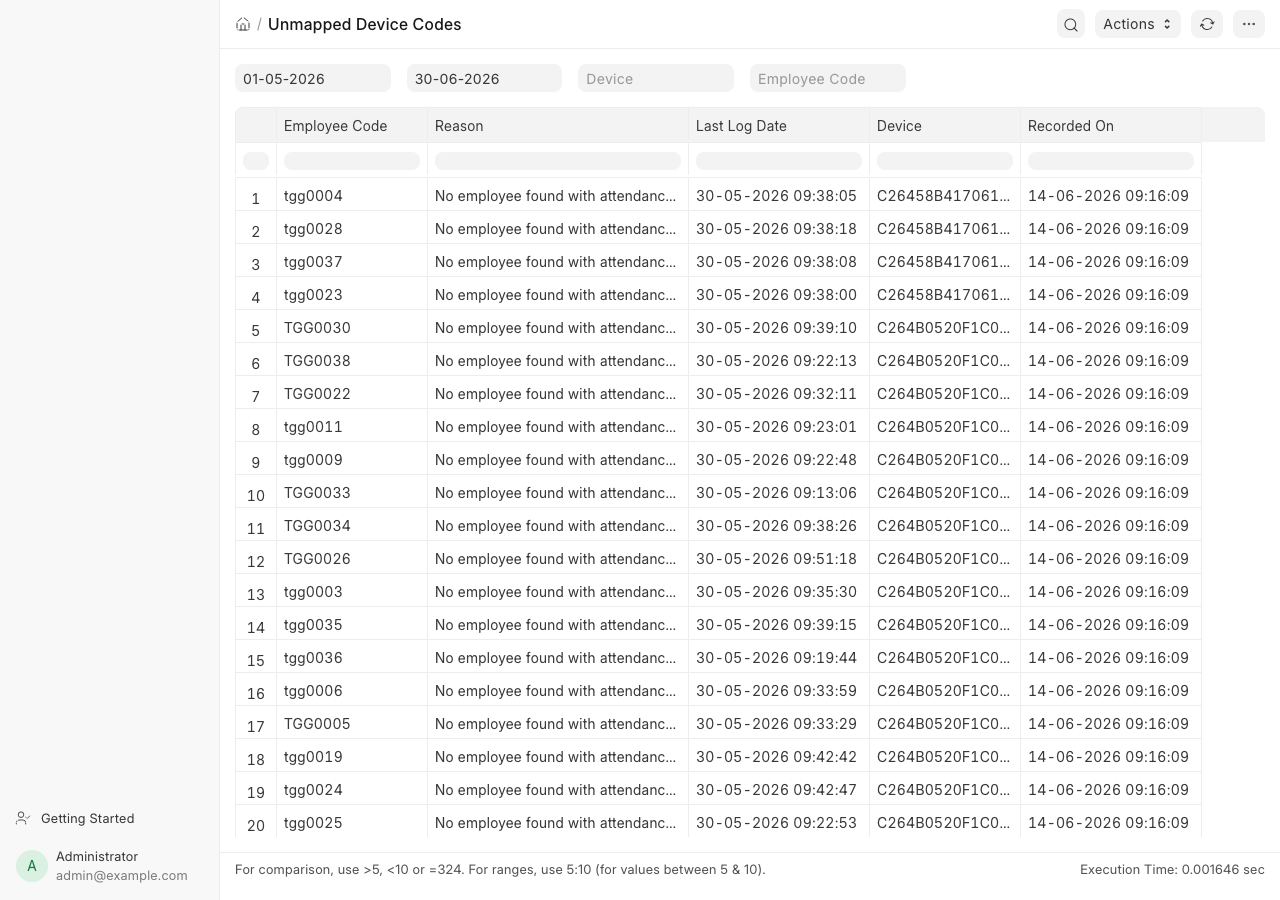
6.4 Unmapped Device Codes
The actionable worklist (same data as Failed Employee Attendance Sync, in report
form with date/device filters): which device codes had no matching employee, the
reason, last seen, and device.
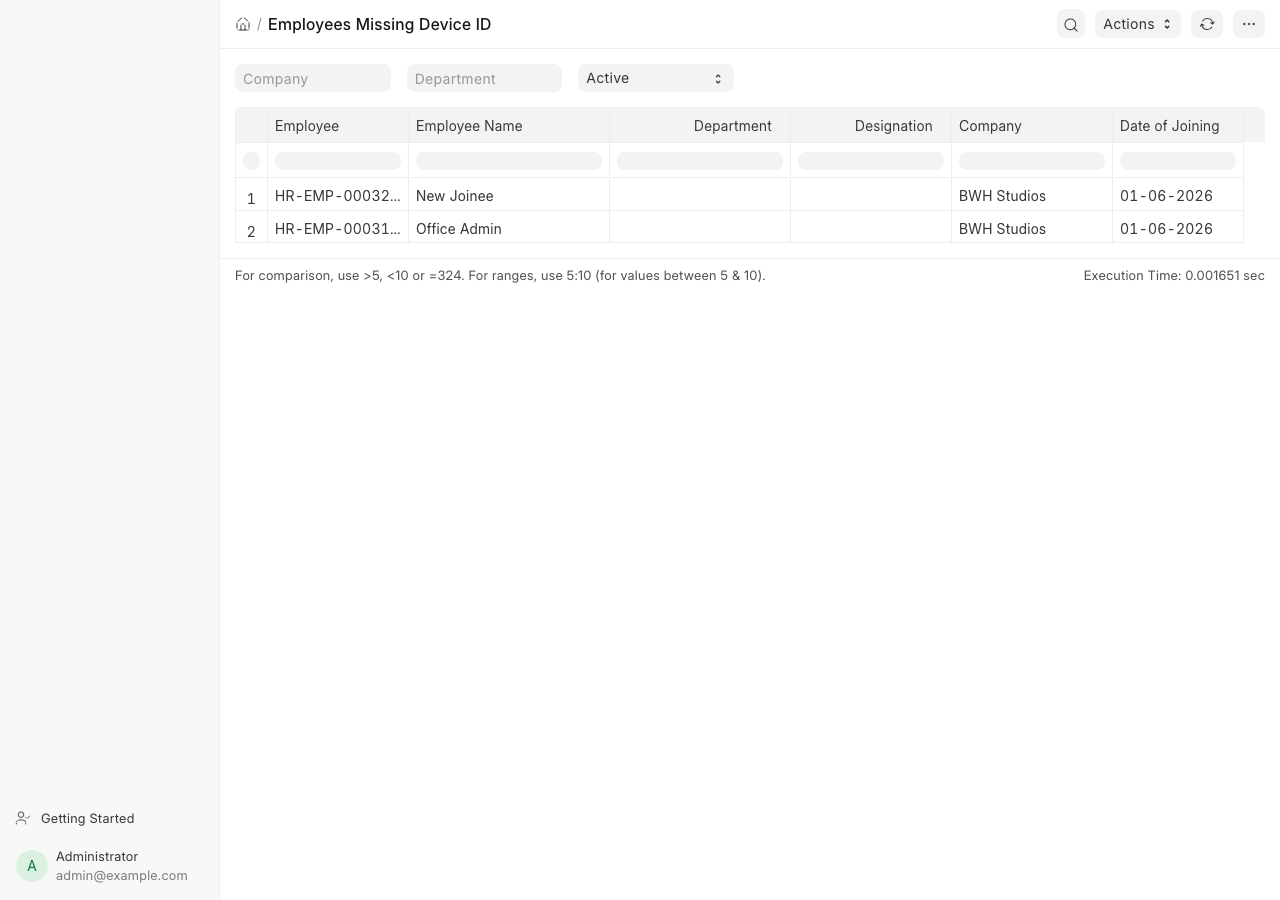
6.5 Employees Missing Device ID
Active employees with no Attendance Device ID set — they will never sync
until fixed. A proactive configuration‑gap finder.
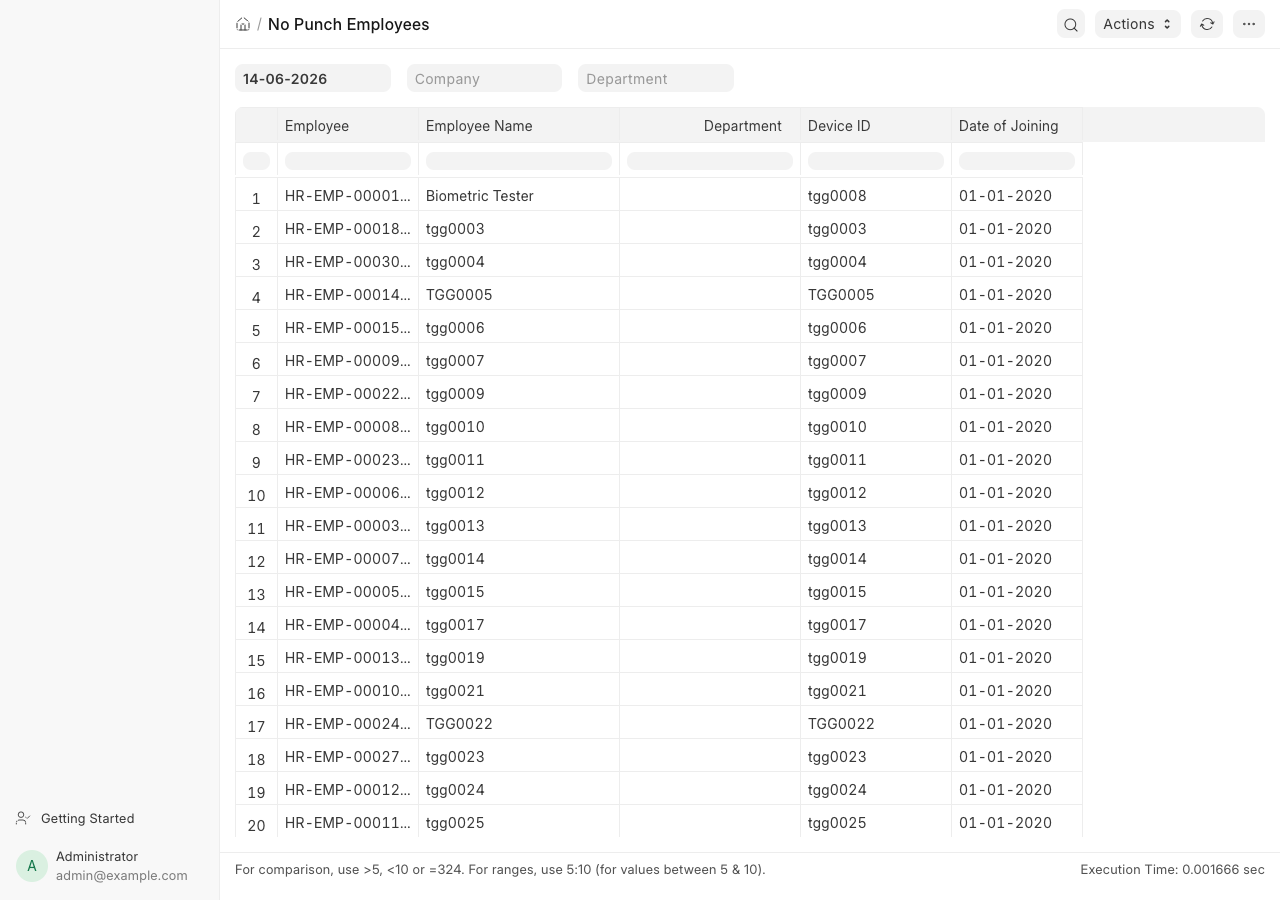
6.6 No Punch Employees
For a chosen date, the active mapped employees who recorded zero punches —
your daily absence / missed‑punch exceptions.
7. Troubleshooting
| Symptom | Likely cause & fix |
|---|---|
| Punches not coming in | Device URL unreachable from the server (off‑network/VPN). Check the device is on; the app retries hourly. Confirm API URL/Key in ESSL Settings. |
| Check‑ins created but no Attendance | Employee's Shift Type has no auto‑attendance, or "Determine Check‑in/Check‑out" isn't set to Alternating. |
| An employee's punches are missing | Their Attendance Device ID is blank or doesn't match the device code. See Employees Missing Device ID and Unmapped Device Codes. |
| "Last Successful Sync" shows an old date | The device has been unreachable. Once it's back, the hourly job catches up automatically (or use Sync Now). |
| Numbers look low for "today" | Today is still in progress; it re‑pulls every hour. Evening punches appear after they happen. |
Need a date range pulled right now? Use Sync Now on ESSL Settings. For
anything else, contact your Frappe administrator.