Manage Your Ticket
Once you have booked, every ticket has its own detail page where you can view its QR code, transfer it to someone else, change your add-on preferences, or request a cancellation. This page walks you through each of those actions and explains why an action may sometimes be unavailable.
Each ticket lives at:
/b/account/tickets/:ticketId
You reach it from Your Account → Tickets. See Your Account for how to find your bookings and tickets.
View your ticket and QR code
Open a ticket to see its details: attendee name and email, event, ticket type, status, the event date and venue, and any add-ons attached to it. If your ticket includes a QR code, it appears in the QR Code panel — click it to enlarge it for scanning at the door.
You can also Download a PDF copy of the ticket from the button at the top right, and — for webinar events — join the session directly from the Webinar Access panel when a Zoom link is available.
How action windows work
Three ticket actions are time-limited by the organizer:
- Transfer the ticket to a new attendee
- Change add-on preferences (for example, a T-shirt size or meal choice)
- Request cancellation of a ticket or a whole booking
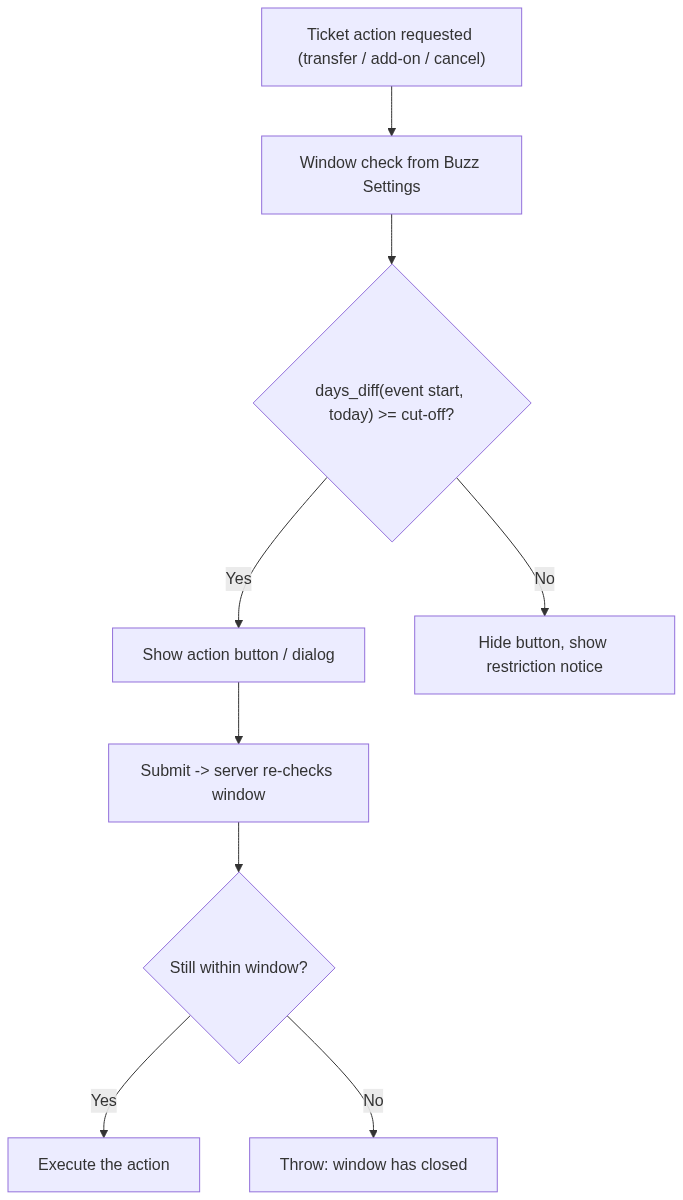
Each action has a cut-off measured in days before the event start date. The cut-offs are configured once, for the whole site, in Buzz Settings (see Buzz Settings). When the event gets close enough that a window has closed, the matching button disappears and a notice explains that the option is no longer available.
The window check always runs twice: once when the page loads (to decide whether to show the button) and again on the server when you submit, so an action cannot slip through after its window has closed.
The relevant Buzz Settings fields are:
| Action | Buzz Settings field | Default |
|---|---|---|
| Transfer | allow_transfer_ticket_before_event_start_days |
7 |
| Change add-ons | allow_add_ons_change_before_event_start_days |
7 |
| Request cancellation | allow_ticket_cancellation_request_before_event_start_days |
7 |
A value of 7 means the action stays open until 7 days before the event starts.
If the event has no start date set, the actions are treated as closed.
Transfer a ticket
Use a transfer when someone else will attend in your place.
- Open the ticket at
/b/account/tickets/:ticketId. - Click Transfer (top right). The button only appears when the booking is Confirmed and the transfer window is still open.
- Enter the new attendee's First Name, Last Name, and New Attendee Email.
- Submit.
The ticket's attendee details are updated in place — the QR code and ticket stay valid, now in the new person's name. Two emails are sent automatically:
- the original attendee is told the ticket has been transferred, and
- the new attendee receives a welcome email with the event details and their ticket information.
You can transfer a ticket if you are the attendee on it or the person who made the booking. If the transfer window has closed, the Transfer button is hidden and attempting the action returns: "Ticket transfer is not allowed at this time. The transfer window has closed."
Change an add-on preference
Some add-ons let you pick an option (for example, a size or a session choice). You can update that choice up until the add-on change window closes.
- Open the ticket and find the Add-ons panel.
- Click Edit next to the add-ons. This button only shows for add-ons that have selectable options, when the booking is Confirmed and the change window is still open.
- Choose the new value from the dropdown and save.
If the window has closed, an amber notice reads "Add-on preference changes are no longer available — The change window has closed as the event is approaching." and the Edit button is hidden.
Add-ons that are simply included (with no options to pick) are shown for reference but cannot be changed here. For how add-ons are defined and attached to tickets, see Add-ons.
Request a cancellation
Cancellation is requested at the booking level, from the booking detail page:
/b/account/bookings/:bookingId
- Open the booking and start a cancellation request.
- Choose to cancel the whole booking or select individual tickets to cancel. Tickets that are already cancelled, or that already have a pending request, are shown but cannot be selected again.
- Submit your request.
A cancellation request is exactly that — a request. It is subject to the organizer's approval and refund policy; it does not cancel the ticket immediately. You can only have one open cancellation request per booking at a time, and the request must be made while the cancellation window is still open. After the window closes, new requests are rejected with: "Cancellation requests are no longer allowed for this event."
If a request covers every ticket, it is recorded as a full-booking cancellation; otherwise only the tickets you selected are listed.
When an action is unavailable
If one or more windows have closed, the booking page shows a single consolidated notice listing what is no longer available — for example "Some options are no longer available as the event is approaching:" followed by the affected actions (ticket cancellation requests, ticket transfers, add-on preference changes). This is expected behavior driven by the Buzz Settings cut-offs above, not an error.
If you need to make a change after a window has closed, contact the organizer using the support email configured for the site.
Related pages
- Your Account — find your bookings and tickets
- Add-ons — how add-ons and their options are set up
- Buzz Settings — where the action windows are configured