Add-ons
Add-ons let you sell optional extras alongside a ticket — a t-shirt size, a workshop seat, a meal preference, swag, and so on. Each attendee in a booking chooses their own add-ons, and the choices follow through onto their individual tickets.
This page is for organizers setting add-ons up, and for attendees who want to understand how they show up while booking. For the tickets themselves, see Ticket Types & Inventory.
How add-ons fit together
There are three pieces:
- Ticket Add-on — the catalog entry you define per event (for example, "T-shirt"). It carries a title, an optional price, a description, and a flag for whether the attendee picks from a list of options.
- Options — when an add-on lets the attendee choose (for example, sizes S/M/L/XL), you list those options on the add-on itself, one per line.
- Attendee selection — what each attendee actually picked. During booking these selections are saved as Ticket Add-on Value rows (which option, at what price), grouped per attendee in an Attendee Ticket Add-on record, and then copied onto each generated Event Ticket.
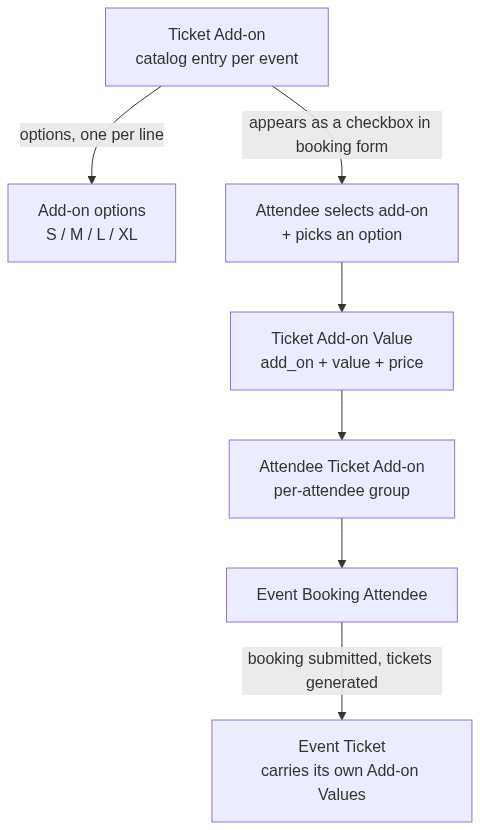
A Ticket Add-on Value always links back to its parent Ticket Add-on through its add_on field, and it copies the price and currency from that add-on. That link is what lets the booking form, tickets, and reports show the add-on's title next to the chosen value.
Define an add-on (organizer)
Add-ons are created per event. From Desk, open the Ticket Add-on list and create a new record.
Fill in:
- Title — what attendees see (for example, "Conference T-shirt"). Titles must be unique within an event; a duplicate title for the same event is rejected.
- Event — the Buzz Event this add-on belongs to. Required.
- Price — the extra charge for the add-on. Leave it at
0for a free add-on. Add-on prices are added on top of the ticket price in the booking total. - Currency — defaults to INR.
- Description — optional helper text shown under the add-on in the booking form.
- User Selects Option? — turn this on when the attendee must choose from a list (sizes, meal types, session slots).
- Options — only used when User Selects Option? is on. Enter each option on its own line. This field becomes mandatory once the option flag is set.
- Enabled? — on by default. Only enabled add-ons appear in the booking form; disable one to retire it without deleting past data.
How add-ons appear in the booking form (attendee)
On the registration page (/b/:eventRoute/register), each attendee card shows the event's enabled add-ons after the name and ticket-type fields. Add-ons render only when the event has at least one enabled add-on.
For each add-on the attendee sees:
- A checkbox labelled with the add-on title (and its description below, if set).
- When the add-on has User Selects Option? enabled, ticking the checkbox reveals a dropdown of the configured options. The first option is selected by default so a checked add-on always has a value.
Selections are made per attendee, so two people in the same booking can pick different add-ons and different options. The add-on price is reflected in the booking summary and rolled into the amount the attendee pays.
What happens on submission
When the booking is processed, each attendee's selections are written as Ticket Add-on Value rows and grouped into one Attendee Ticket Add-on record linked from that attendee's booking row. Once payment is confirmed and tickets are generated, those add-on values are carried onto each attendee's Event Ticket, so the add-on (and the chosen option) travels with the ticket and shows up on the ticket details screen.
Changing an add-on after booking (attendee)
If the add-on change window is still open, an attendee can update their selected option (for example, switch a t-shirt from M to L) from their ticket details. The change updates the value on the ticket's add-on in place; it does not re-run payment. The window is controlled by the allow add-ons change before event start setting in Buzz Settings, and the option is hidden once the event is close enough that the window has closed.
See Manage Your Ticket for the attendee-side flow, and Ticket Types & Inventory for how add-ons sit alongside ticket pricing.