Campaigns & Register Interest
Campaigns & Register Interest
Campaigns let you share a single public link (or QR code) that people can use to register their interest in an event or topic — before tickets are even on sale. Each registration is captured as a lead in Frappe CRM, so you can follow up and measure demand from a flyer, a slide, or a social post.
This page covers both sides: setting up a campaign as an organizer, and what an attendee sees when they open the link.
Prerequisite: Campaigns require Frappe CRM to be installed on your site. Without it, you cannot enable a campaign and visitors cannot register their interest.
How it works
Set up a campaign (organizer)
Campaigns are managed from the Desk, in the Buzz Marketing module.
- Go to Buzz Campaign and create a new record.
- Fill in the fields:
- Title — shown as the heading on the public page (required).
- Description — the body copy visitors read. This is a Markdown field, so you can use headings, lists, and links (required).
- Event — optionally link a Buzz Event. If set, Buzz checks whether the registering person already holds a confirmed ticket for that event and links it to the lead.
- Enabled? — leave this off while you draft. The public page only works once the campaign is enabled.
- Save.
When you save an enabled campaign, Buzz automatically generates a QR Code image pointing at the campaign's public link (/b/register-interest/<campaign-name>). The QR code is regenerated if the campaign is renamed. Download it from the QR Code field to print on flyers, badges, or slides.
The campaign's record name is what appears in the URL, so give it a clean, readable name when you create it (naming is set by you, not auto-numbered).
The public registration page
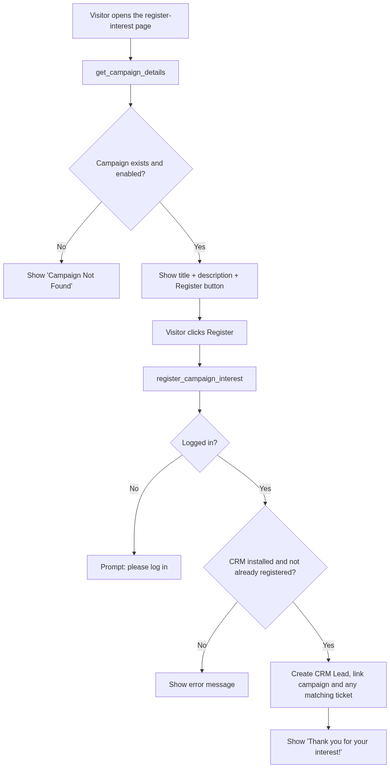
Share the link /b/register-interest/<campaign-name> (or the generated QR code). When a visitor opens it:
- If the campaign exists and is enabled, they see the campaign title, the description rendered from Markdown, and a Register button.
- If the campaign does not exist or is not enabled, they see a Campaign Not Found message.
Register interest (attendee)
- Open the campaign link.
- Read the campaign details and click Register.
- If you are not logged in, you are prompted to log in first — registering interest requires an account.
- On success, the page confirms with "Thank you for your interest!"
You can only register once per campaign. If you have already registered, the page tells you so.
What gets stored
When someone registers interest, Buzz creates a CRM Lead with:
- First name — taken from the user's first name, full name, or the local part of their email.
- Email — the logged-in user's email.
- Status —
New. - Buzz Campaign — the campaign they registered for.
- Event Ticket — if the campaign is linked to an event and the user already holds a confirmed (submitted) ticket for it, that ticket is linked to the lead.
Duplicate registrations are blocked: if a lead already exists for the same email and campaign, the visitor is told they have already registered.
You can then work these leads in Frappe CRM like any other — filtering by Buzz Campaign to measure how each link or QR code performed.