Coupons & Discounts
Coupons & Discounts
Coupons let you offer money off a booking or hand out free tickets — for a specific event, a whole event category, or every event you run. This page covers how organizers create coupons in Desk and how attendees apply them while booking.
A coupon can now be entered and applied without logging in. Attendees only have to sign in (or verify by OTP) when they reach checkout, so the discount is visible while they fill in the form.
Coupon types
Every coupon is a Buzz Coupon Code record with one of two types:
- Discount — takes a percentage or a flat amount off the booking total.
- Free Tickets — grants a number of free tickets of a chosen ticket type, optionally bundled with free add-ons.
Both types are managed from the same place in Desk: Ticketing → Buzz Coupon Code (available to the System Manager and Event Manager roles).
Create a discount coupon
- Open Ticketing → Buzz Coupon Code → New.
- Leave Code blank to auto-generate an 8-character uppercase code, or type your own. The code is unique and can't be changed after the record is saved.
- Set Coupon Type to
Discount. - Choose the scope under Applies To:
- blank — valid for any event,
Event— pick a single Event,Event Category— pick an Event Category (the coupon then works on every event in it).
- Configure the discount:
- Discount Type:
PercentageorFlat Amount. - Discount Value: the percent (max 100) or the flat amount.
- Maximum Discount Amount (percentage only): caps how much a percentage coupon can take off.
- Minimum Order Value: the booking subtotal required before the coupon applies.
- Discount Type:
- Set the limits (all optional):
- Max Usage Count — total times the coupon can be redeemed (
0= unlimited). - Max Usage Per User — how many times one person can use it (
0= unlimited). - Valid From / Valid Till — the active date window (leave blank for immediate / no expiry).
- Max Usage Count — total times the coupon can be redeemed (
- Keep Is Active checked and save.
The Usage Statistics section shows Times Used — a live count of submitted bookings that redeemed this coupon.
Create a free-tickets coupon
- Set Coupon Type to
Free Tickets. The scope is automatically locked to a single Event. - Pick the Event and the Ticket Type the free tickets apply to.
- Set Number of Free Tickets — the total pool of free tickets this coupon can hand out across all bookings.
- (Optional) Add rows to Free Add-ons to also waive specific add-ons for each free ticket holder.
- Set Valid From / Valid Till if you want a date window, then save.
The Free Tickets Claimed statistic counts how many matching tickets have already been booked,
so the remaining pool is Number of Free Tickets − Free Tickets Claimed. Once the pool is
exhausted, the coupon stops applying with an "all free tickets have been claimed" message.
Free-tickets coupons only discount attendees whose ticket type matches the coupon. If a booking has more matching attendees than the remaining pool, only the available number are made free; the rest are charged normally.
How an attendee applies a coupon
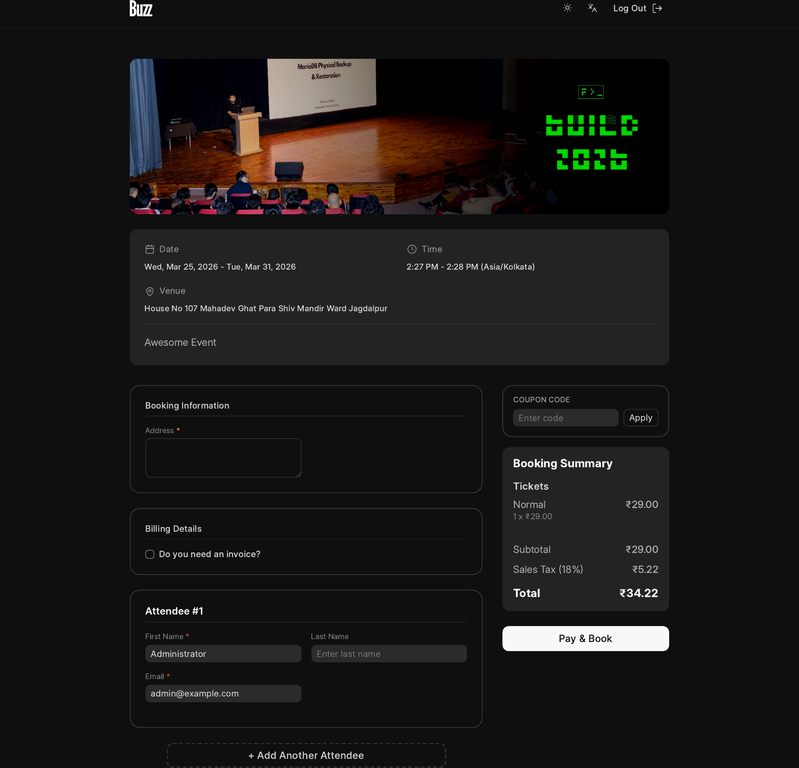
On the booking form at /b/<event-route>/register, the Coupon Code box appears next to the
order summary whenever there's an amount to pay (or a coupon is already applied).
- The attendee types a code and clicks Apply (codes are normalized to uppercase).
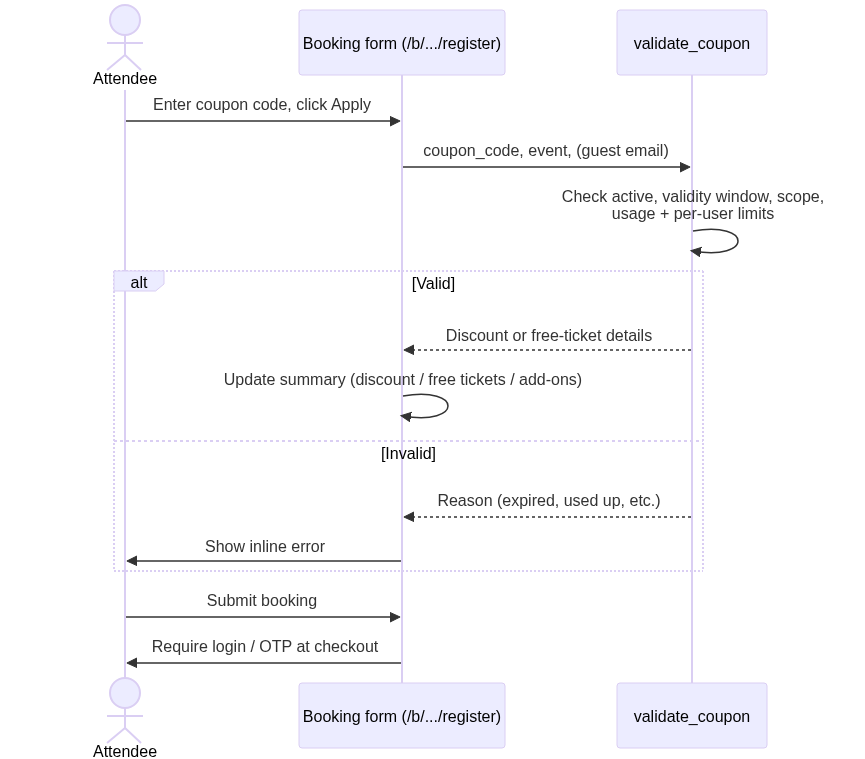
- Buzz validates the code and, if it's good, updates the summary immediately:
- a discount shows as "X% off" or a flat amount, with any cap noted,
- a free-tickets coupon shows the ticket type, remaining count, and any free add-ons.
- The applied coupon is written to the URL as a
?coupon=query parameter, so a shareable link like/b/<event-route>/register?coupon=SUMMER25pre-fills and auto-applies the coupon on load. - The attendee can click Remove to clear it.
A coupon is rejected (with a reason shown inline) when it's inactive, outside its validity window, out of scope for the event, fully used up, over the per-user limit, or when the booking is below the coupon's minimum order value.
Applies without login; login only at checkout
The validation endpoint accepts guests, so a coupon applies before anyone signs in. For per-user limit checks in guest mode, Buzz uses the email entered on the form. Sign-in (or OTP verification for guest-booking events) is only required at checkout when the attendee submits the booking — see Book tickets and Guest booking with OTP.
Notes
- Bulk Ticket Coupon was an earlier, single-purpose mechanism that granted a fixed number of tickets per code. Its role is now covered by the Free Tickets coupon type above; new installs should use Buzz Coupon Code. Existing tickets may still reference a legacy Bulk Ticket Coupon for back-compatibility.
- Coupons are validated again when the booking is submitted, so a coupon that runs out or expires between applying and checkout will be caught at that point.