Your Account
Your account at /b/account is the home for everything you do across Buzz events: the
tickets you bought, the bookings you made, the talks you proposed, and the sponsorships
you applied for. Whether you are an attendee, a speaker, or a sponsor, you manage it all
from this one place.
Open your account
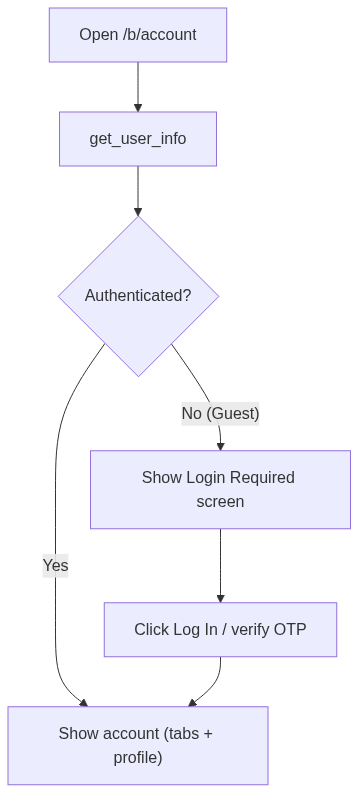
Go to /b/account. You land on the My Bookings tab by default.
Your account is private, so you must be signed in to view it. If you are not signed in, Buzz shows a Login Required screen with a Log In button. Click it, sign in (or verify by OTP), and you return straight to your account.
Your profile
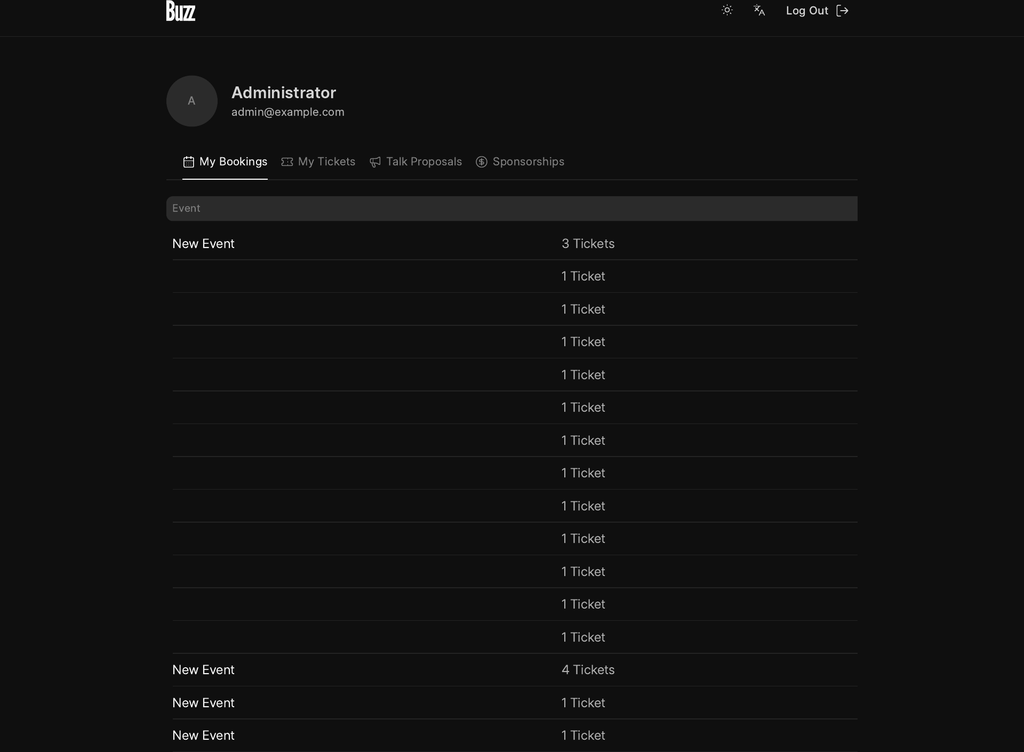
At the top of the account page you see your profile: your avatar, full name, and email.
- Change your photo — click the avatar and choose Upload image (or Change image if you already have one). Only image files are accepted.
- Remove your photo — click the avatar and choose Remove image to fall back to your initials.
Changes save immediately and you see a confirmation toast.
Tabs and what they show
Buzz keeps your account uncluttered: a tab only appears when you actually have that kind of activity.
| Tab | Always shown? | Appears when |
|---|---|---|
| My Bookings | Yes | Always available |
| My Tickets | Yes | Always available |
| Talk Proposals | No | You have submitted at least one talk proposal |
| Sponsorships | No | You have at least one sponsorship enquiry |
On a phone the tabs collapse into a dropdown selector; on a wider screen they appear as a tab bar. Either way they navigate to the same pages.
My Bookings
Each booking groups the tickets you purchased in a single transaction. The list shows the event, its start date and venue, the amount paid, and the booking status. Open a booking to see its full details and the tickets it generated.
If you have not booked anything yet, the tab shows No bookings found.
My Tickets
This tab lists every ticket issued to you, with the attendee name, event, ticket type, and event start date. Open a ticket to view its QR code and to transfer it, change an add-on preference, or request a cancellation. See Manage Your Ticket for those actions.
If you have no tickets, the tab shows No tickets found.
Talk Proposals
This tab appears once you have submitted a talk proposal. It lists each proposal with its title, event, status, and submission date so you can track where it stands in review.
Sponsorships
This tab appears once you have a sponsorship enquiry. It lists each enquiry with its company, event, tier, and status, and marks whether it has become a confirmed sponsorship. Open an enquiry to continue payment or withdraw it.
Switch language
Buzz follows your account language. To change it, use the language switcher (the languages icon) in the top navigation bar, available from anywhere in the dashboard. Pick a language from the dropdown; the current one is marked with a check. Your selection is remembered for future visits.
How the login check works
Every dashboard page first asks the server who you are. Public pages — booking, custom forms, event proposals — render whether or not you are signed in. Account pages are not public, so when you are browsing as a guest they swap in the Login Required screen instead of the account content. Once you sign in, the same page reloads with your data in place.