Speakers & Schedule
Speakers & Schedule
This page walks you through building your event's speaker line-up and agenda: adding talks, attaching speakers, marking featured speakers on the event landing page, and laying out the day-by-day schedule across tracks.
Audience: organizers building the agenda, and speakers who want to know how their profile appears.
Everything here is configured in Desk. The pieces fit together like this:
- An Event Talk is a single session, linked to one event.
- Each talk lists one or more Speakers (a row in the talk's Speakers table points at a Speaker Profile).
- A Speaker Profile is tied one-to-one to a User and holds the public-facing bio, photo, designation, company, and social links.
- The event's Schedule is a table of Schedule Items, each placed on a date, in an Event Track, at a start/end time — a Schedule Item is either a Talk or a Break.
- The event's Featured Speakers table highlights selected Speaker Profiles on the event page.
Speaker Profiles
A Speaker Profile is the public identity of a speaker. It is linked to a Frappe User (the link is unique — one profile per user) and carries:
- Display Name — defaults to the user's full name.
- Display Image — the speaker photo shown on the event page.
- Designation and Company.
- Social Media Links — a child table of links (Twitter/X, LinkedIn, etc.).
Display name stays in sync with the User
When you edit a User's name, Buzz automatically updates the matching Speaker Profile's
Display Name to the new full name. This is wired through a User update hook
(update_speaker_display_name), so you don't have to touch the profile by hand after a name
change.
Note: this sync overwrites Display Name with the User's full name on every User update. If you intentionally set a Display Name that differs from the User's full name, renaming the User will reset it.
Event Talks
An Event Talk is one session in your programme.
Each talk has:
- Title (required).
- Event (required) — the Buzz Event this talk belongs to.
- Submitted By (required) — the User who proposed/owns the talk.
- Proposal (optional) — the originating Talk Proposal, if the talk came from the proposals flow.
- Speakers — a table of speakers; each row links a Speaker Profile and can carry its own social media links.
- Description — the rich-text session abstract.
When a talk is created from a proposal, Title, Submitted By, Event, and Description are fetched from the proposal automatically.
A talk can only be created once per proposal. If a talk already exists for the same proposal, saving a second one is blocked.
Generating talks from accepted proposals
If you collect sessions through the talk proposal flow, you don't build talks from scratch. Open the Talk Proposal, review it, and click Accept and Create Talk. Buzz then:
- Maps the proposal into a new Event Talk (copying title, event, description, submitter).
- For each proposed speaker, finds or creates a User by email.
- Finds or creates a Speaker Profile for that user.
- Adds each Speaker Profile to the talk's Speakers table.
- Sets the proposal's status to Accepted and opens the new talk.
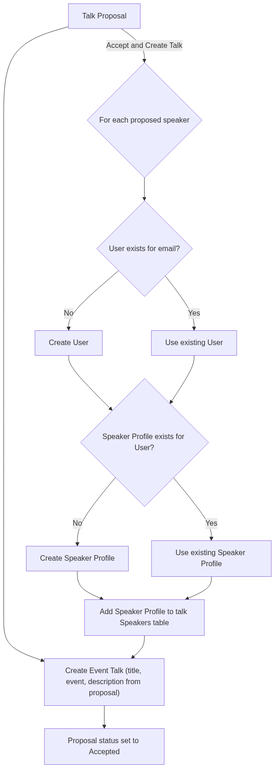
Because users and speaker profiles are reused when they already exist, accepting multiple proposals from the same speaker won't create duplicates.
Featured Speakers
To highlight headline speakers on the event page, open the Buzz Event and fill the Featured Speakers table. Each row points at a Speaker Profile. This table lives on the event itself, so featured speakers are chosen per event independently of which talks they present.
Tracks
An Event Track is a parallel stream in your agenda (for example Main Stage, Workshop Room, Hallway). A track is a standalone record linked to one Buzz Event, and you name it yourself when you create it (the name is set by you, not auto-generated). Create a track per parallel stream before you build the schedule, since every schedule item must be assigned to a track.
Building the Schedule
The agenda is the Schedule table on the Buzz Event. Each row is a Schedule Item.
Every schedule item has:
- Date — the day it runs on.
- Track — which Event Track it belongs to (required).
- Type — either Talk or Break.
- Talk — the linked Event Talk (required when Type is Talk).
- Description — e.g. Tea Break, Lunch (required when Type is Break).
- Start Time and End Time.
Schedule validation rules
When you save the event, Buzz checks each schedule row and blocks the save if:
- The item's date is outside the event's start/end dates.
- The End Time is not after the Start Time.
- On the event's first day, an item starts before the event's start time.
- On the event's last day, an item ends after the event's end time.
Set the event's own start/end dates and times first, then lay out the schedule within those bounds.
Putting it together
A typical setup order:
- Create Speaker Profiles (or let them be created automatically when accepting proposals).
- Create the Event Talks — manually, or via Accept and Create Talk from proposals.
- Create the Event Tracks for your parallel streams.
- On the Buzz Event, fill the Schedule table, placing each talk/break into a track at a date and time.
- On the Buzz Event, fill Featured Speakers to spotlight headline names.
See also
- Propose a Talk — how speakers submit proposals that become talks.