Payment Gateways & Offline
Payment Gateways & Offline Payments
When a booking total comes out above zero, Buzz needs a way to collect the money before it generates tickets. You have two kinds of options, and you can offer both on the same event:
- Online payment gateways — Razorpay, Stripe, PayPal, Paymob and any other
gateway configured through the
frappe/paymentsapp. The attendee is sent to a hosted checkout and their booking confirms automatically once the payment clears. - Offline payment methods — bank transfer, UPI, cash, an invoice, anything you settle outside Buzz. The attendee submits their booking (optionally with proof of payment) and you confirm it by hand once you've verified the money.
Payment options are scoped per event, so different events can take different gateways or run entirely on offline payments.
How it fits together
A booking only triggers payment when its total is greater than zero — free bookings (including those zeroed out by a coupon) submit and generate tickets immediately. For paid bookings, the attendee either gets redirected to a gateway checkout, or — for an offline method — lands in an "Approval Pending" state that waits for you.
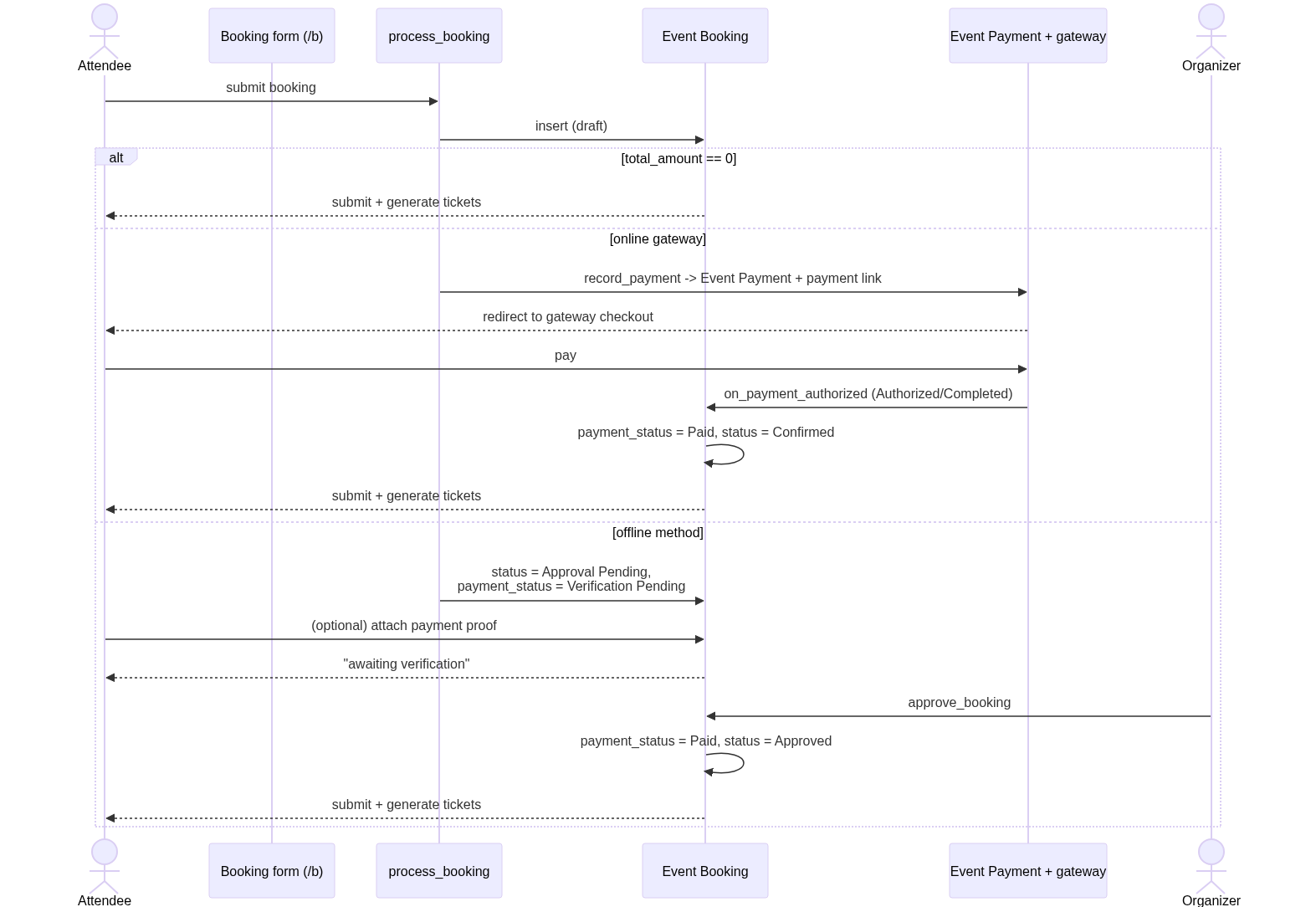
The booking logic lives in process_booking (buzz/api/__init__.py) and the
Event Booking controller (buzz/ticketing/doctype/event_booking/event_booking.py);
gateway links are built in buzz/payments.py.
For the full attendee-side booking walkthrough, see Book Tickets.
Setting up online gateways
Online gateways are listed in the Payment Gateways table on the Buzz Event
form (the Event Payment Gateway child table). Each row links to a Payment
Gateway record — these come from the frappe/payments app, so the gateway has to
be configured there first (API keys, currency, and so on).
To offer a gateway on an event:
- Configure the gateway in the Payment Gateway / payment-settings DocTypes
provided by
frappe/payments. - Open the Buzz Event in Desk and add a row to the Payment Gateways table for each gateway you want to accept.
- Save.
When an attendee reaches checkout, Buzz reads these rows
(get_payment_gateways_for_event in buzz/payments.py). If the event has more than
one gateway, the attendee is shown a picker and chooses one; with a single gateway
that step is skipped. If no rows are present, Buzz falls back to the legacy
single payment_gateway field on the event, and if that's empty too, booking fails
with "No payment gateway configured for this event".
What happens on payment
For a chosen gateway, get_payment_link_for_booking creates an Event Payment
record (via record_payment) tying the booking to the amount, currency and gateway,
then asks the gateway controller for a hosted checkout URL. Razorpay and Paymob also
get an order created up front. The attendee pays and is redirected back to
/b/bookings/<booking>?success=true.
The gateway then calls the booking's on_payment_authorized. On an Authorized or
Completed status, Buzz marks the booking Paid / Confirmed, stamps the
Event Payment as received (mark_payment_as_received), and submits the booking —
which generates and emails the tickets.
Setting up offline payments
Offline payment methods are Offline Payment Method records, one per method per event. Create one from Desk for each way you want to settle outside Buzz.
Each method has:
- Title — what the attendee sees as the payment option (must be unique within the event), e.g. Bank Transfer or UPI.
- Event — the Buzz Event this method applies to.
- Enabled — only enabled methods are offered.
- Collect Proof of Payment — when on, the attendee must upload a file (e.g. a transfer screenshot) before they can submit.
- Description — rich text shown in the payment dialog; use it for account numbers, UPI IDs, reference instructions, etc.
Enabled offline methods are returned by get_event_booking_data alongside the
online gateways, so they appear in the same payment-option list at checkout.
Selecting an offline method opens the offline payment dialog
(OfflinePaymentDialog.vue), which shows the amount due, your description content,
any custom fields, and the proof-of-payment uploader when required.
You can attach extra fields to a single offline method using Buzz Custom Field records with Applied To set to Offline Payment Form and the Offline Payment Method link pointing at the method — handy for capturing a transaction reference or payer name.
Verifying an offline booking
When an attendee pays offline, process_booking saves the booking as
Approval Pending with payment_status = Verification Pending, attaches the
proof file if one was uploaded, and stops there — no tickets yet.
To finish the booking, open it in Desk and verify the payment against the proof and your records. While the booking is in Approval Pending, the Event Booking form shows two custom buttons — but only if you hold the Event Manager role:
- Approve and Submit — runs
approve_booking(restricted to Event Manager), which sets the booking to Approved / Paid and submits it, generating and emailing the tickets. - Reject — runs
reject_booking(also Event Manager only), which discards the booking and marks it Rejected; no tickets are issued.
Offline bookings can't be submitted the normal way — the controller blocks it and tells you to use Approve/Reject — so verification always goes through a human.
Reference
| Concern | Where it lives |
|---|---|
| Online gateways per event | Payment Gateways table (Event Payment Gateway) on the Buzz Event |
| Gateway resolution + fallback | get_payment_gateways_for_event (buzz/payments.py) |
| Payment link + record | get_payment_link, record_payment, Event Payment |
| Offline methods | Offline Payment Method DocType |
| Booking flow | process_booking (buzz/api/__init__.py), Event Booking controller |
| Confirm offline | approve_booking / reject_booking on Event Booking (Event Manager) |