Build & Use a Custom Form
Build & Use a Custom Form
Custom forms let you collect any structured information from your audience for a specific event — a workshop sign-up, a volunteer application, a dietary survey, a swag-size poll — without writing any code. You pick an existing DocType to back the form, attach it to your event, choose which fields to show, and Buzz renders a public, mobile-friendly form at a clean URL under your event route.
This page has two parts:
- Organizers — define and publish a form on a Buzz Event.
- Attendees — open the link, fill it in, and submit.
How it works
A custom form is a row in the Custom Forms table on a Buzz Event. Each row points at a DocType (the form DocType), and Buzz auto-generates input fields from that DocType's schema. When someone submits the form, Buzz creates one new record of that DocType.
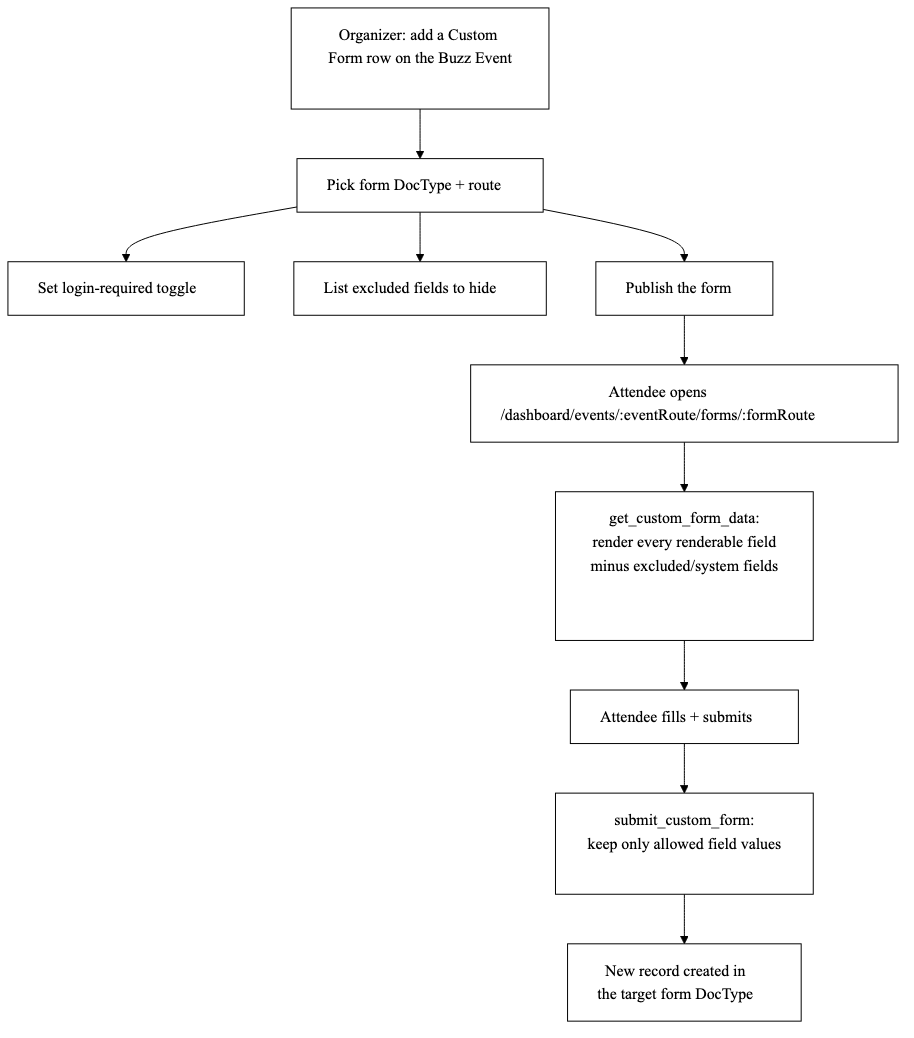
The two whitelisted methods that drive this live in
buzz/api/forms.py: get_custom_form_data (render) and submit_custom_form
(create the record). The form rows themselves are the Buzz Event Form DocType
(buzz/events/doctype/buzz_event_form/).
For organizers — build a form
1. Choose the DocType to collect into
Every custom form writes into one DocType. That can be a standard Buzz DocType or any custom DocType you create in Desk. Design that DocType first: its fields, labels, mandatory flags, and section/column breaks become your form's layout.
Tip: if your form DocType has an event Link field and/or a submitted_by Link
field, Buzz fills them in automatically (the event from the URL, the submitter from
the logged-in session) — you don't need to show them on the form.
2. Add a Custom Form row to your event
- Open your event in Desk: Buzz Event list → your event.
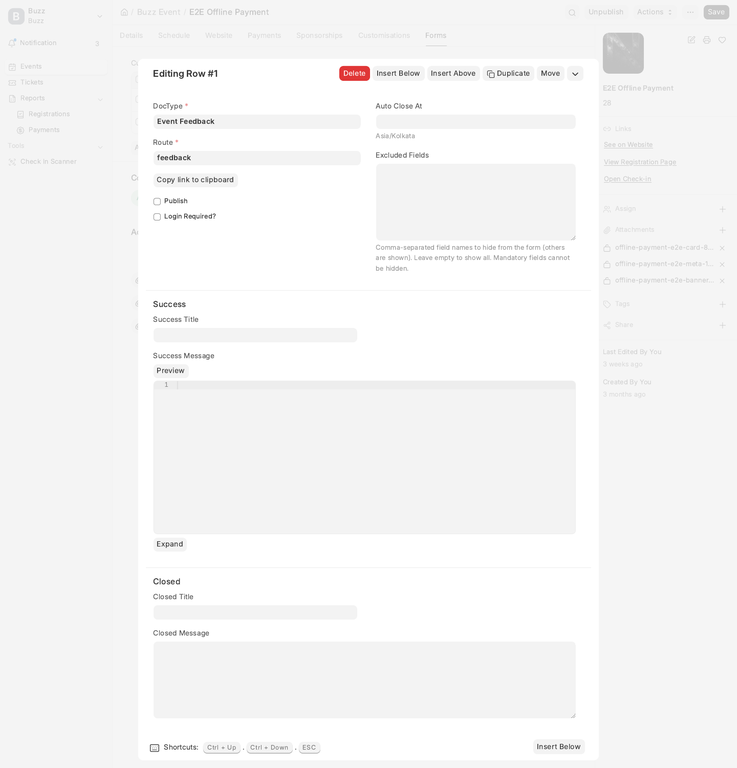
- Go to the Forms tab and add a row to the Custom Forms table. Each row is one form. Set:
- DocType — the form DocType from step 1.
- Route — the URL slug for this form (e.g.
volunteer-signup). It must be unique among the forms on this event; Buzz rejects duplicates. - Login Required? — see Login requirement below.
- Auto Close At (optional) — a date/time after which the form stops accepting submissions and shows your closed message instead.
- Excluded Fields (optional) — see Choosing which fields show.
- Success Title / Success Message — shown after a successful submit. The message supports Markdown.
- Closed Title / Closed Message — shown when the form is past its auto-close time.
- Publish — tick this to make the form live. Unpublished forms return "not available" even if you know the URL.
- Save the event. Use the Copy link to clipboard button on the row to grab the public URL.
The published form lives at:
/dashboard/events/:eventRoute/forms/:formRoute
For example, an event with route pyconf-2026 and a form route volunteer-signup
is served at /dashboard/events/pyconf-2026/forms/volunteer-signup. The form is only reachable when
both the event is published and the form row's Publish box is ticked.
Choosing which fields show
Buzz uses a hide-list (blacklist), not an allow-list. By default every renderable field on the form DocType is shown. The Excluded Fields box is a comma-separated list of field names to hide — everything you don't list stays visible. Leave it empty to show all fields.
# Excluded Fields example — hide these three, show the rest
phone_number, company, notes
A field is "renderable" (and therefore shown unless you exclude it) only when all
of these hold — this is enforced by is_renderable_form_field in
buzz/api/forms.py:
- It is not in the excluded list.
- It is not a layout-only field type (Section Break / Column Break / etc. are handled separately, see below).
- It is not hidden and not read-only on the DocType.
On top of your exclusions, Buzz always hides a set of system and auto-managed
fields (STANDARD_EXCLUDE_FIELDS): the standard Frappe metadata fields plus
event, submitted_by, status, additional_fields, and the additional-fields
section break. The auto-set event and submitted_by fields are filled in for you
rather than shown.
Two guard rails apply when you save (validate_excluded_fields):
- Unknown field names are rejected. A typo in Excluded Fields throws an error naming the bad field — so the box can't silently fail. (Listing a system/auto-set field is allowed and is simply a no-op, since it is never rendered anyway.)
- Mandatory fields cannot be hidden. If you try to exclude a field that is marked required on the DocType, Buzz throws and names it. Required data always has to be collectable.
Layout: sections and columns
You design layout on the form DocType, not in Buzz. Section Break and Column Break fields from the DocType are passed through to the rendered form, so the attendee-facing form mirrors your DocType's grouping: each Section Break starts a new block and each Column Break splits the current section into side-by-side columns (single column on mobile). On desktop, a section with N columns renders as N equal columns.
Login requirement
The Login Required? toggle controls guest access:
- Off (default) — anyone with the link can open and submit the form. If the form
DocType has a
submitted_byfield, it is left unset for guests. - On — opening the form as a guest shows a "Please log in to submit this form"
prompt instead of the fields, and a guest submit is rejected. Once logged in,
submitted_byis auto-filled with the user.
Event-scoped custom fields (Buzz Custom Field)
Beyond the DocType's own fields, you can attach extra, event-specific fields to a
form without touching the DocType schema — using Buzz Custom Field
(buzz/buzz/doctype/buzz_custom_field/). These are handy for one-off questions that
only matter for a single event.
To add one:
- Open the Buzz Custom Field list in Desk and create a record.
- Set Event to your event and Applied To to
Custom Form. - Set Custom Form DocType to the same DocType your form row uses (custom fields are matched to a form by event + DocType).
- Fill in Label, Type (Data, Check, Small Text, Phone, Email, Select, Date, Number, Multi Select, Rating, Attach, Attach Image), Options (for Select / Multi Select), Mandatory?, Placeholder, Default Value, and Order.
- Tick Enabled?.
Enabled custom fields are appended below the DocType fields on the form, ordered by
Order. They only render when the form DocType has an additional_fields child
table; on submit, each answered custom field is stored as a row in that table (label,
fieldname, type, and value). The same Buzz Custom Field DocType is also used to add
fields to bookings, tickets, and offline-payment forms via its Applied To value
— this page only covers the Custom Form case.
For attendees — fill in a form
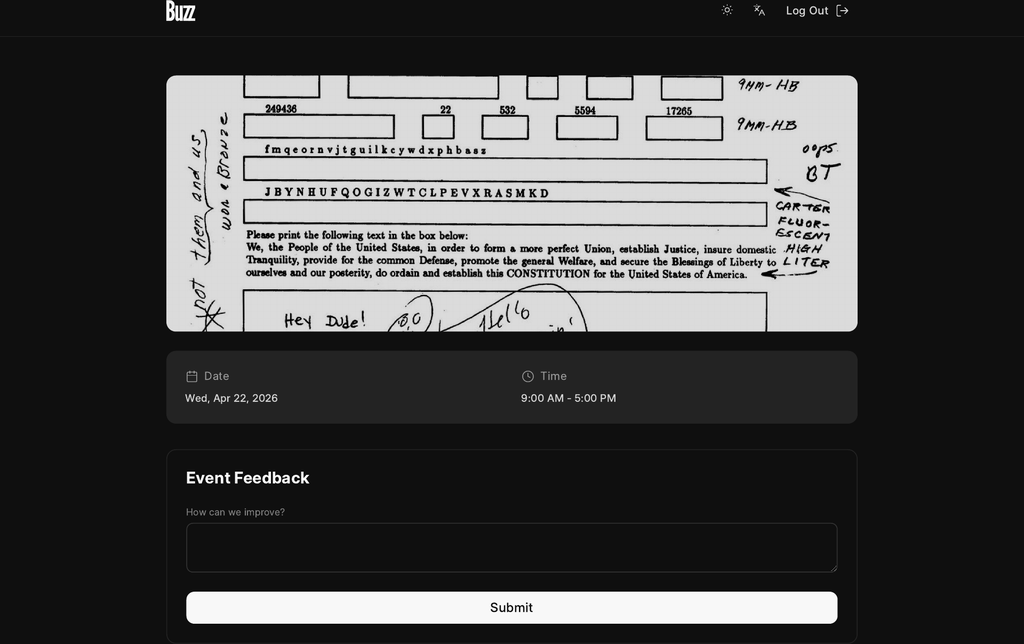
- Open the link your organizer shared, e.g.
/dashboard/events/pyconf-2026/forms/volunteer-signup. - If the form requires login, sign in first when prompted.
- Fill in the fields. Required fields must be completed; table-style fields let you Add one or more rows via a dialog.
- Press Submit. On success you'll see the organizer's thank-you message.
If the form has closed (past its auto-close time) or isn't published, you'll see a "submissions closed" or "not found" notice instead of the fields.
What happens on submit
When you submit, Buzz (submit_custom_form) creates a single new record of the form
DocType. It only accepts values for fields that are actually renderable on the form —
anything else in the request is ignored — then auto-sets the event (and your user, if
logged in), attaches any enabled custom-field answers, and inserts the record. The
organizer sees it as a normal document of that DocType in Desk.
Troubleshooting
| Symptom | Cause / fix |
|---|---|
| "This form is not available for this event" | The form row isn't Published, or the event isn't published. Tick Publish on both. |
| "Please log in to submit this form" | The form's Login Required? is on and you're a guest. Sign in. |
| Save error naming a field in Excluded Fields | That field name doesn't exist on the DocType (typo), or it's mandatory and can't be hidden. Correct the name or remove it. |
| A field you expected is missing from the form | It may be hidden/read-only on the DocType, listed in Excluded Fields, or one of the always-hidden system fields (event, submitted_by, status, etc.). |
| Custom fields (Buzz Custom Field) don't appear | The form DocType has no additional_fields child table, the field isn't Enabled, or its Custom Form DocType/Event don't match the form. |
| Form shows a "closed" message | The current time is past Auto Close At. Clear or extend it to reopen. |