Propose a Talk
Want to speak at an event? Buzz lets you submit a talk proposal through a public web form. Organizers review it, and if your talk is accepted it is turned into a scheduled session — with a speaker profile created for you automatically. This page walks you through submitting a proposal and tracking its status.
Submit your proposal
Talk proposals are collected through the Propose a Talk web form, served at:
/propose-a-talk
Sign-in is required before you can submit, so you will be asked to log in (or create an account) first. Once you are in, fill out the form:
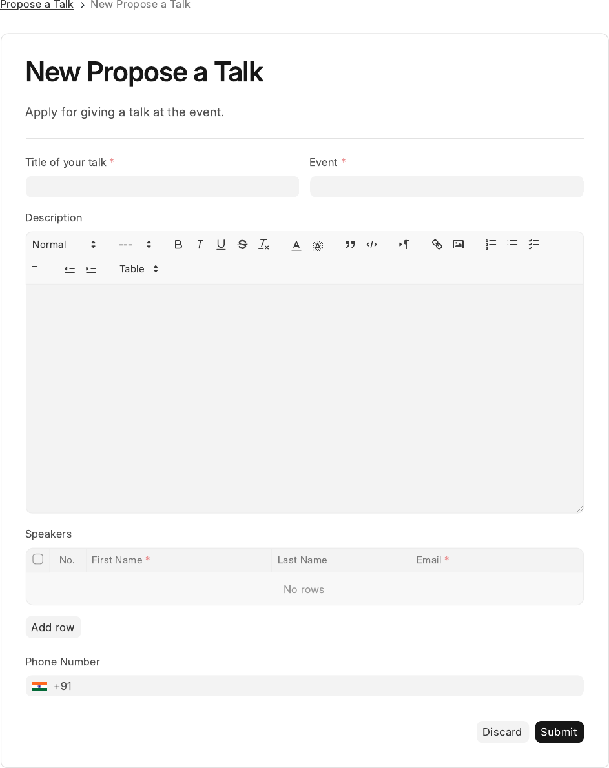
| Field | Required | Notes |
|---|---|---|
| Title of your talk | Yes | A short, descriptive title. |
| Event | Yes | Pick the event you are proposing for. |
| Description | No | A rich-text abstract of what you will cover. |
| Speakers | Yes | Add one row per speaker — first name, last name, and email. |
| Phone Number | No | An optional contact number for the organizer. |
Add every person who will present in the Speakers table. The email you enter for each speaker matters: it is the address Buzz uses to create that speaker's account and profile if the talk is accepted, so use the address each speaker actually wants to be reached at.
When you click Submit, your proposal is created with the status Review Pending. You can submit more than one proposal for the same or different events.
What happens after you submit
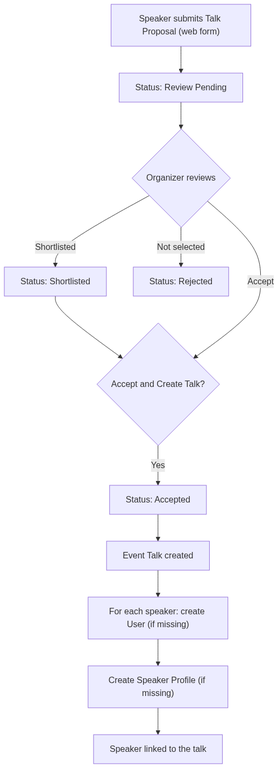
Your proposal moves through these statuses as the organizer reviews it:
| Status | Meaning |
|---|---|
| Review Pending | Submitted and awaiting review. You can still edit it. |
| Shortlisted | Under final consideration. |
| Accepted | Selected — the talk has been added to the event schedule. |
| Rejected | Not selected for this event. |
When an organizer accepts your proposal, Buzz does three things automatically:
- Creates an Event Talk (the scheduled session) mapped from your proposal.
- For each speaker, creates a User account if one does not already exist for that email.
- For each speaker, creates a Speaker Profile linked to that user if one does not already exist.
This means accepted speakers do not have to register separately — their profile is ready to be featured on the event's speakers and schedule pages. See Speakers & Schedule for how organizers manage talks and speaker profiles once they exist.
Track your proposals
You can follow every proposal you have submitted from your account:
/b/account/proposals
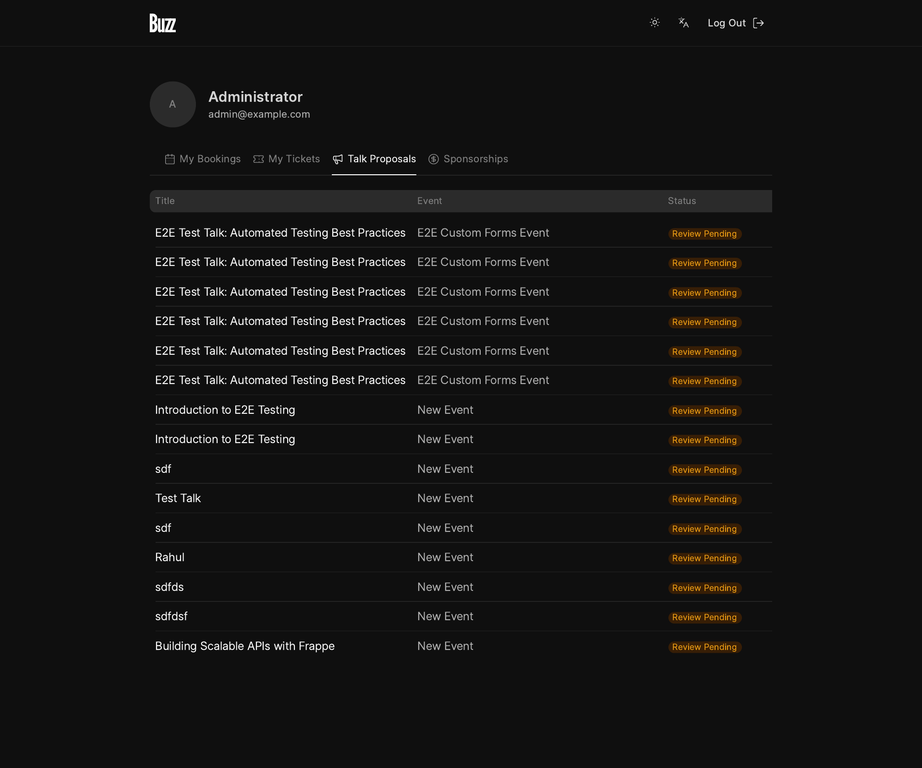
The list shows each proposal's title, event, status, and the date you submitted it, with a color-coded status badge. Select any row to open its details page, where you will see a status banner explaining where things stand, plus the full title, event, speakers, and description.
Edit a proposal
You can edit a proposal while it is still Review Pending — open it from your proposals list and click Edit Proposal to update the title, description, or phone number.
After a proposal is Accepted, you can only edit the resulting talk if the organizer has enabled editing talks after acceptance on that event. When that setting is on, the same button reads Edit Talk and updates the scheduled Event Talk instead of the original proposal. Otherwise the proposal is locked once it has been reviewed.