Choose & Activate Your Storefront Theme
Your theme is the look and layout of your storefront — the header, the home‑page style, product grids, colours and fonts your shoppers see. iVendNext ships several ready‑made themes (fashion, electronics, footwear, furniture, grocery, supplements and more). In this section you pick one theme and switch it on.
Activating a theme is a single tick: you open the theme's settings record, check the Active box, and save. Only one theme can be active at a time — when you activate one, the store automatically switches every other one off, so you never have to worry about turning the old one off yourself.
Where it lives: Open it from the Desk search bar (press Ctrl/Cmd + G), type iVend Theme, and pick it from the list. There is no menu icon for it — search is how you reach it. See 01 · Welcome & First Login for a refresher on the search bar.
Before you start (prerequisites)
- 03 · Your eCommerce Settings Hub — your store name, logo and company basics should already be set in Lifestyle Settings. The theme is the frame; those branding details are what show inside it.
- You are logged in to the admin (Desk) as described in 01 · Welcome & First Login.
- At least one theme must already exist on your site as a record you can open. On a brand‑new store this list can be empty — see the technical callout just below before you continue.
One‑time technical setup — ask your administrator
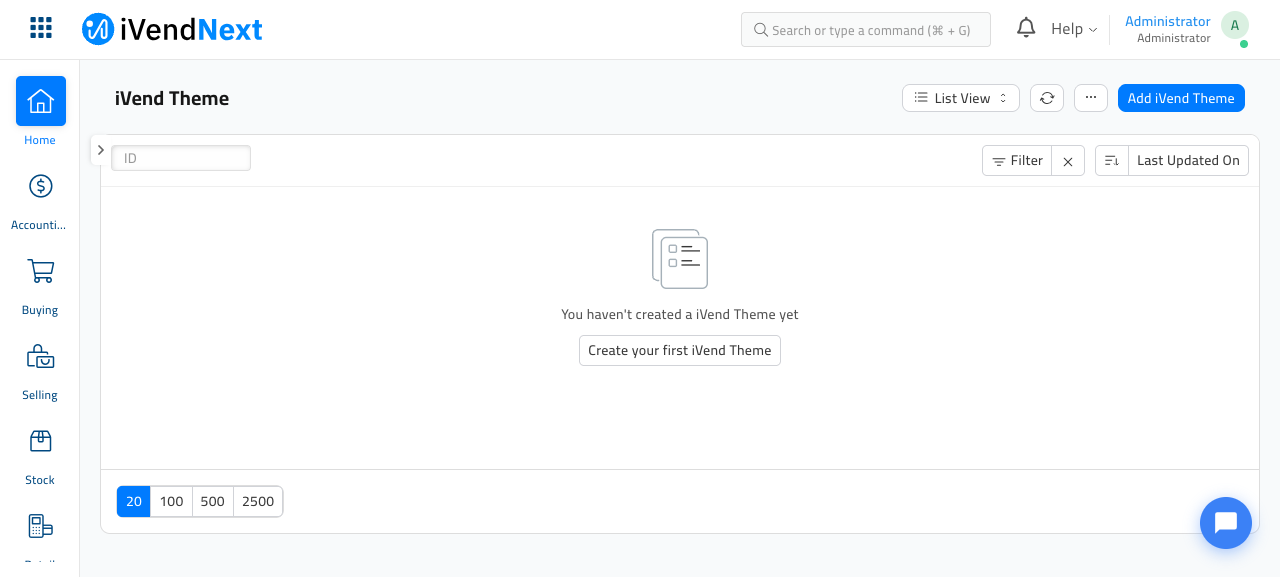
This is not a shop‑owner step. The built‑in themes ship with the app as files, but they only become records you can activate after they are added to your site once — by whoever installs the store (via a theme import, the
bench create-themecommand, or a deployment fixture).If the iVend Theme list is empty (or the theme you want isn't in it), stop and ask your administrator to add the themes to your site. Until a theme exists as a record here, there is nothing to tick Active, and your storefront will render without a proper theme. Once the records exist, everything below is yours to do — no technical help needed.
How theme activation works
You don't "install" a theme from the storefront side or from Website Settings. Activation happens entirely on the theme's own record: tick Active, save, and the storefront picks it up.
flowchart LR
    A[Open the theme record<br/>in iVend Theme] --> B[Tick the<br/>Active checkbox]
    B --> C[Click Save]
    C --> D[Store switches every<br/>other theme OFF<br/>automatically]
    D --> E[Storefront at /en adopts<br/>the theme's layout & look]
Because only one theme is ever active, switching themes later is just as easy: open a different theme record, tick Active, save — the previous one turns off on its own.
Step 1 · Open the theme list
- Press Ctrl/Cmd + G to open the search bar.
- Type iVend Theme and choose it from the results.
You'll land on the list of themes that exist on your site. The Active column shows a tick next to whichever theme is currently switched on.
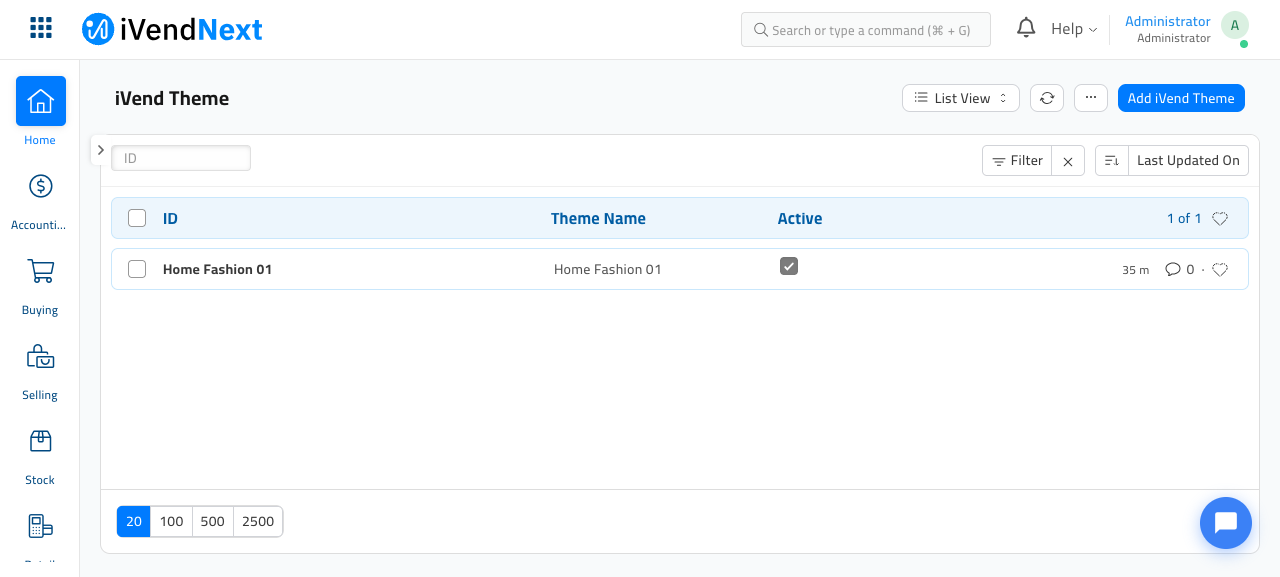
How you know it worked: you see the list with an ID, Theme Name and Active column. If the list is completely empty, no themes have been added to your site yet — see the technical callout above and ask your administrator.
Your list may show more than one theme, or just the one your administrator prepared for you. Each row is one available look for your store.
Step 2 · Open the theme you want
Click the name of the theme you'd like to use (for example Home Fashion 01). This opens that theme's record.
How you know it worked: the theme's name shows as the page title, and you see its settings fields, including the Active checkbox.
Step 3 · Tick the Active checkbox
On the theme record, find the Active checkbox (top‑right area of the form) and tick it.
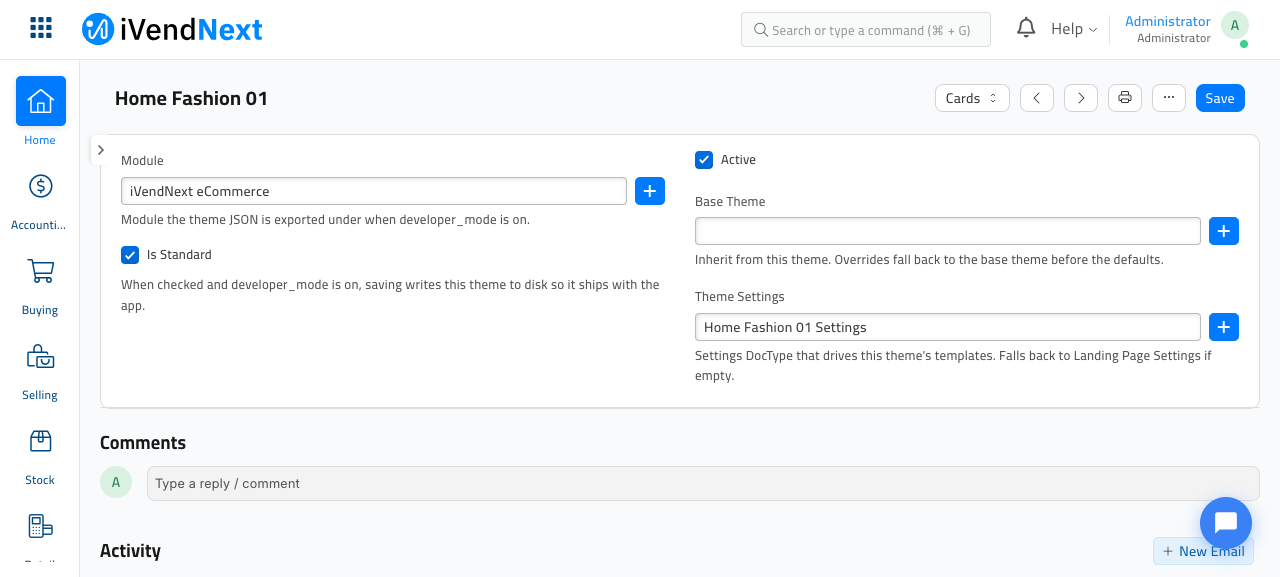
How you know it worked: the box shows a checkmark, and a small unsaved‑changes dot appears near the page title (you save in the next step).
You don't need to touch the other fields. Leave Base Theme and Theme Settings as they are:
- Base Theme lets one theme borrow its layout from another — an advanced option most stores never need.
- Theme Settings points to where this theme's home‑page content (hero banner, marquee, featured products) is edited. You'll fill that in next, in 05 · Configure Your Home Page.
Step 4 · Save
Click the blue Save button at the top right (or press Ctrl/Cmd + S).
How you know it worked: a green Saved message flashes at the top, and the unsaved‑changes dot disappears. Behind the scenes, any other theme that was active is now switched off — the store keeps exactly one theme active at all times.
Step 5 · Check your storefront
Open your live storefront to see the theme in action.
- In a new browser tab, go to your store's front page:
/en(for this store,http://ivend-docs.localhost:8000/en). - If the page was already open, refresh it.
Before — with no theme active, the top of the page is bare: no hero banner and no store logo, just the plain navigation. This is the un‑themed fallback you may be looking at before you switch a theme on.
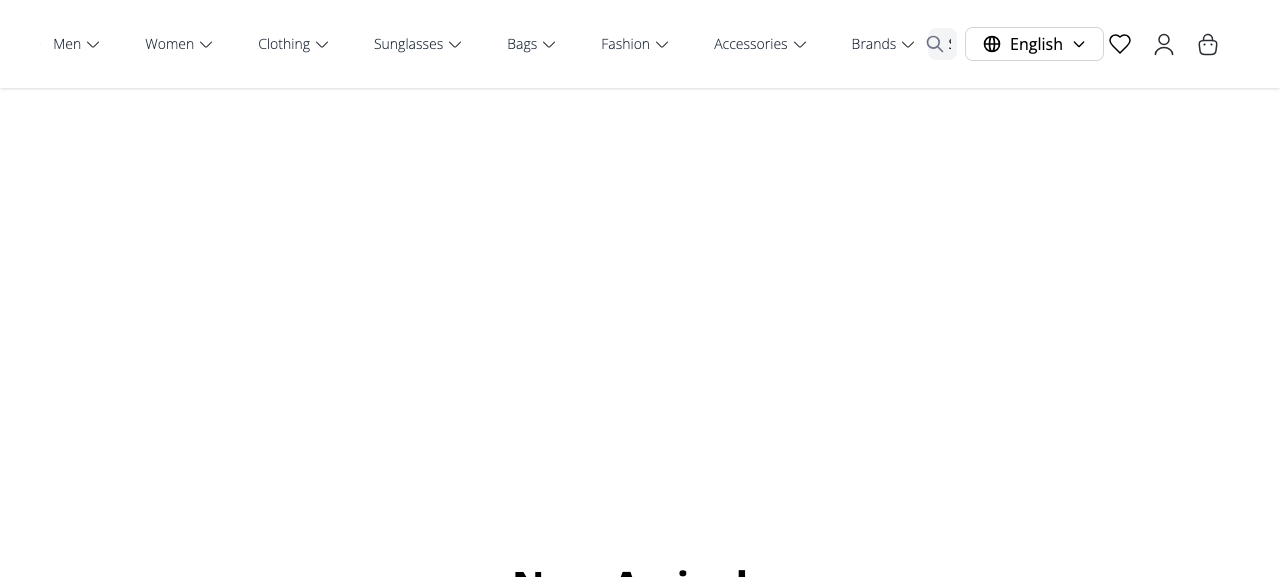
After — with the theme active and the page refreshed, the same top of the page fills in with the theme's hero image and branding.
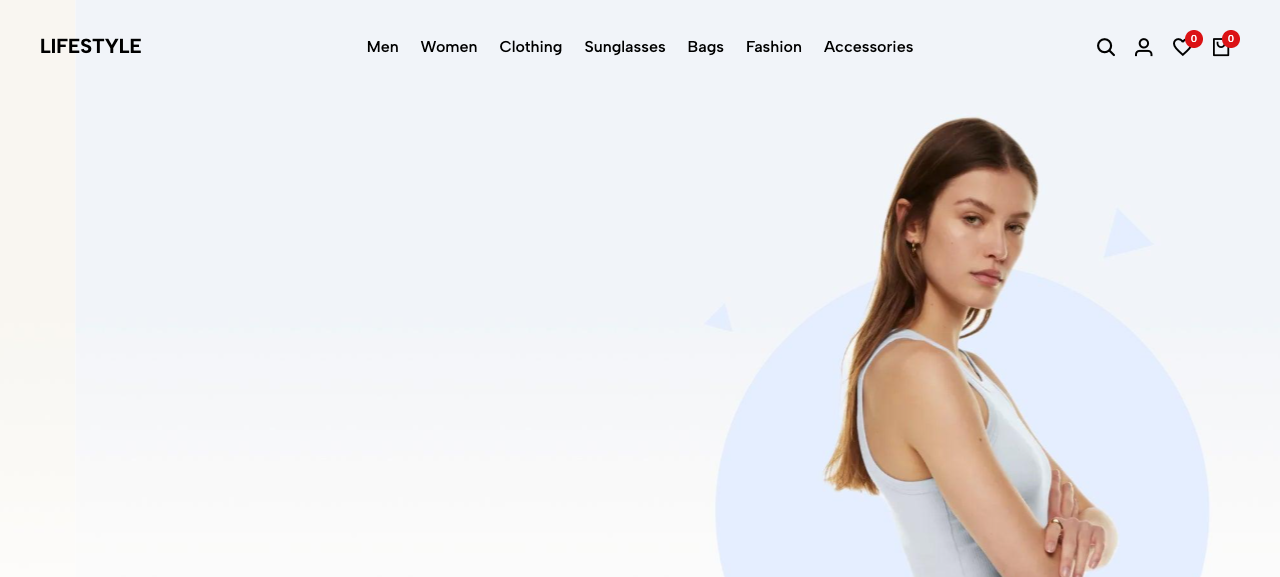
How you know it worked: the storefront now shows the chosen theme's layout — its header style, home‑page hero and product grids. Your store name and logo from 03 · Your eCommerce Settings Hub appear inside this new frame.
Before vs after: with no theme active, the storefront falls back to a bare, unstyled default (the Before shot above). After you activate a theme and refresh, that same page takes on the theme's full design. If your storefront still looks unstyled after saving, re‑check that the Active box is ticked on exactly one theme.
Where this fits in the bigger picture
The theme is the frame; the next sections fill it with your content.
flowchart TD
    A[03 · Lifestyle Settings<br/>store name, logo, company] --> B[04 · Activate a theme<br/>tick Active, Save]
    B --> C[05 · Configure the home page<br/>hero, marquee, featured products]
    B --> D[06 · Footer, navigation<br/>& store info pages]
    C --> E[17 · Preview & Go Live]
    D --> E
Notice that 05 and 06 depend on the theme you pick here: the home‑page content you edit next lives in this theme's settings. If you switch themes later, you may need to set that content up again for the new theme.
Once your theme is active and showing on /en, move on to 05 · Configure Your Home Page to fill the home page with your banners and featured products.
Quick recap
- Search for iVend Theme (Ctrl/Cmd + G).
- Open the theme you want.
- Tick Active.
- Save — every other theme switches off automatically.
- Refresh
/ento confirm the new look.