SEO Configuration Guide
SEO Configuration Guide
This guide explains the SEO and structured-data features built into iVend eCommerce. It is written for store admins and implementers. Most of the SEO surface works automatically — this page focuses on the few things you configure and the many things you get for free.
Quickstart — how to configure
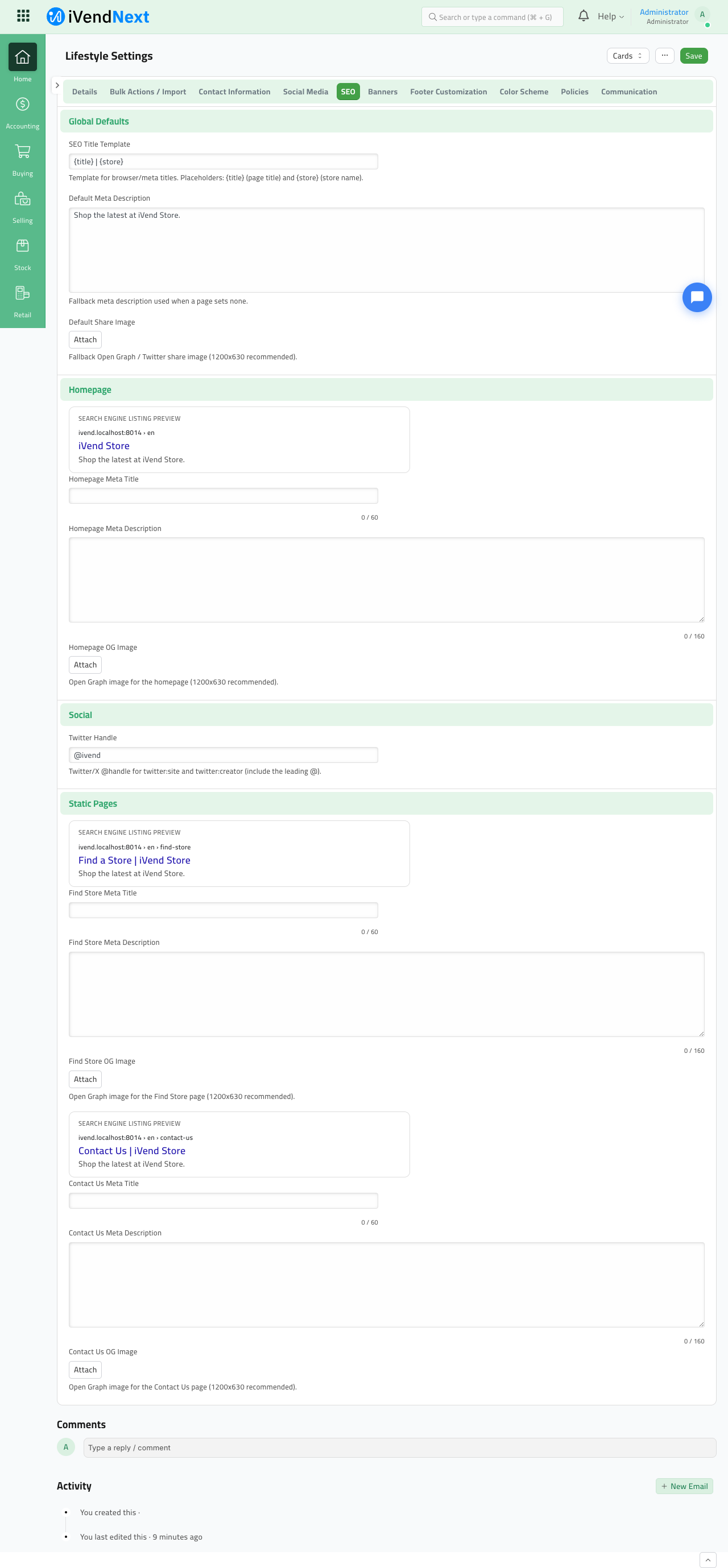
- Set your global defaults. Go to Lifestyle Settings → SEO tab. Fill in the SEO Title Template (e.g.
{title} | {store}), a Default Meta Description, and a Default Share Image. These feed every storefront page that doesn't set its own values. - Configure the homepage. In the same SEO tab, set the Homepage Meta Title, Meta Description, and OG Image. Leave them blank to fall back to the global defaults.
- Configure static pages. Under Static Pages, set the meta title / description / OG image for Find Store and Contact Us. Blanks fall back to defaults.
- Tune individual products & collections. Open any Style Attribute Variant (product) or Ecommerce Category (collection) and use the Search Engine Listing section to override the meta title, description, OG image, or set No Index.
- Publish. That's it — canonical tags, Open Graph, Twitter cards, hreflang, JSON-LD, robots.txt, and the XML sitemap are all generated automatically.
What's automatic vs. what you configure
| Feature | Automatic | You configure (optional) |
|---|---|---|
| Meta title / description | Computed from product/category/page data + templates | Per-page overrides; global templates & defaults |
| Open Graph & Twitter cards | Emitted on every page | OG image per page; default share image; Twitter handle |
| Canonical URLs | Emitted on every page | — |
| hreflang (en / ar) | Emitted on every page | — |
| JSON-LD structured data | Product, CollectionPage, BreadcrumbList, Organization, WebSite, LocalBusiness | Per-variant JSON-LD override |
| robots.txt | Generated on migrate, marker-guarded | Hand-edit (never overwritten) |
| XML sitemap | /sitemap.xml index + paginated children |
— (respects No Index) |
| noindex on cart / checkout / account | Applied automatically | No Index toggle per page |
1. Per-page SEO fields
Three doctypes carry a full set of per-page SEO fields:
- Style Attribute Variant — the product detail page.
- Ecommerce Category — the product listing / collection page.
- Shop Web Page — CMS / content pages.
Each exposes:
- Meta Title — overrides the computed page title.
- Meta Description — overrides the computed description; also used as the OG/Twitter description (truncated to ~160 chars).
- OG Image — the Open Graph / Twitter share image for that page.
- No Index — when enabled, the page emits
noindexand is excluded from the sitemap. - Custom JSON-LD — raw structured-data override for advanced cases.
Fallback behaviour: every field is optional. Leave a field blank and iVend computes a sensible default — the product/category/page name flows into the title template, the Default Meta Description fills the description, and the Default Share Image fills the OG image. You only override where you want something specific.
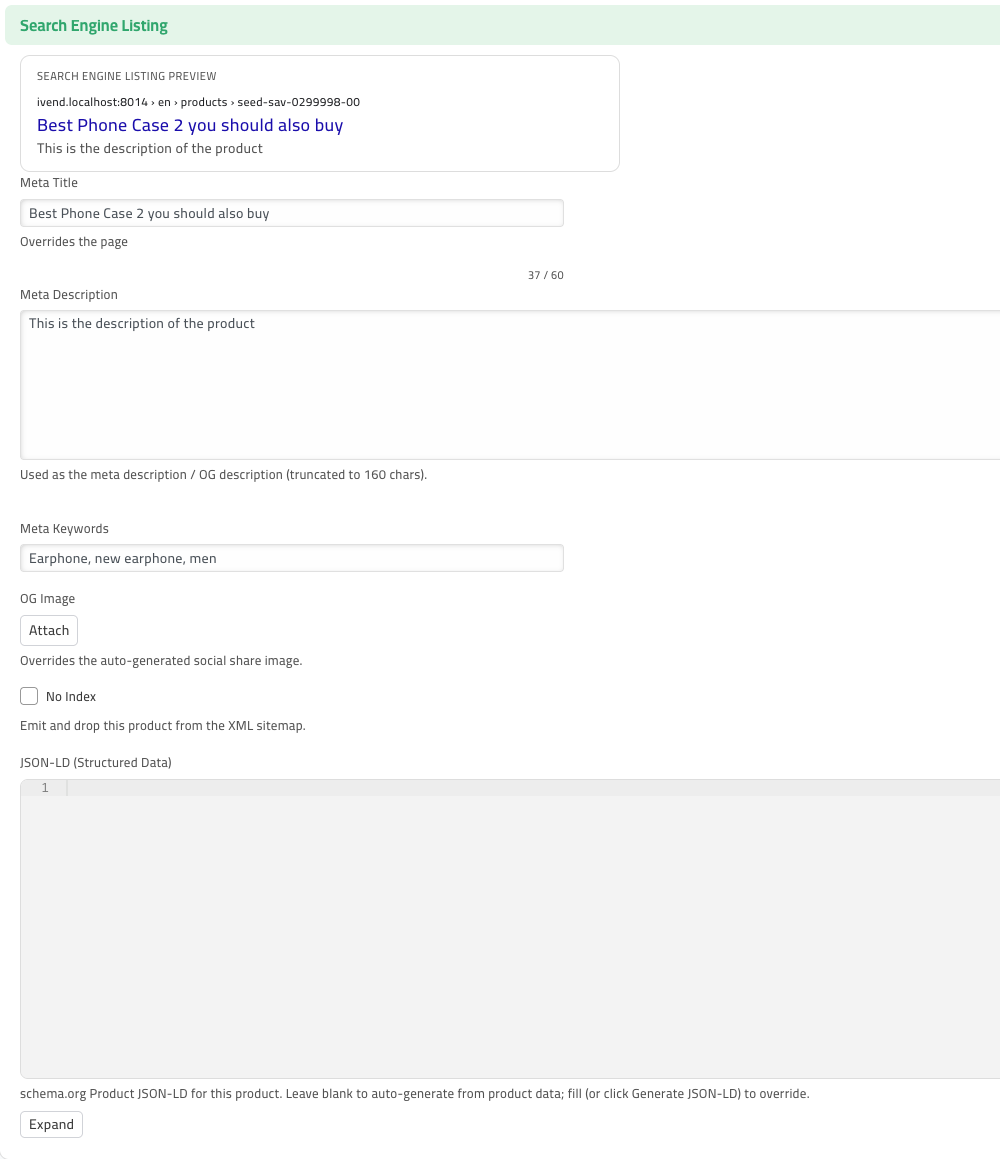
Product detail page (Style Attribute Variant). The full Search Engine Listing section carries the live preview, Meta Title, Meta Description, Meta Keywords, OG Image, No Index, and the per-product JSON-LD (Structured Data) override.
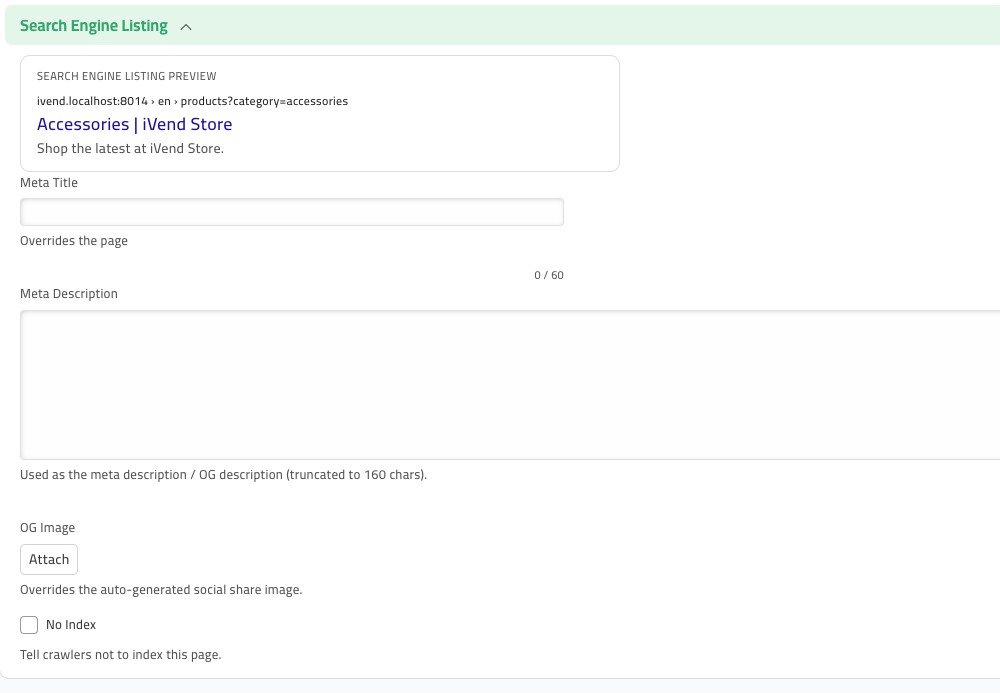
Collection / product-list page (Ecommerce Category). Categories expose the same fields (minus JSON-LD, which is auto-emitted as CollectionPage). Here the preview shows the computed default title and URL because no overrides are set.
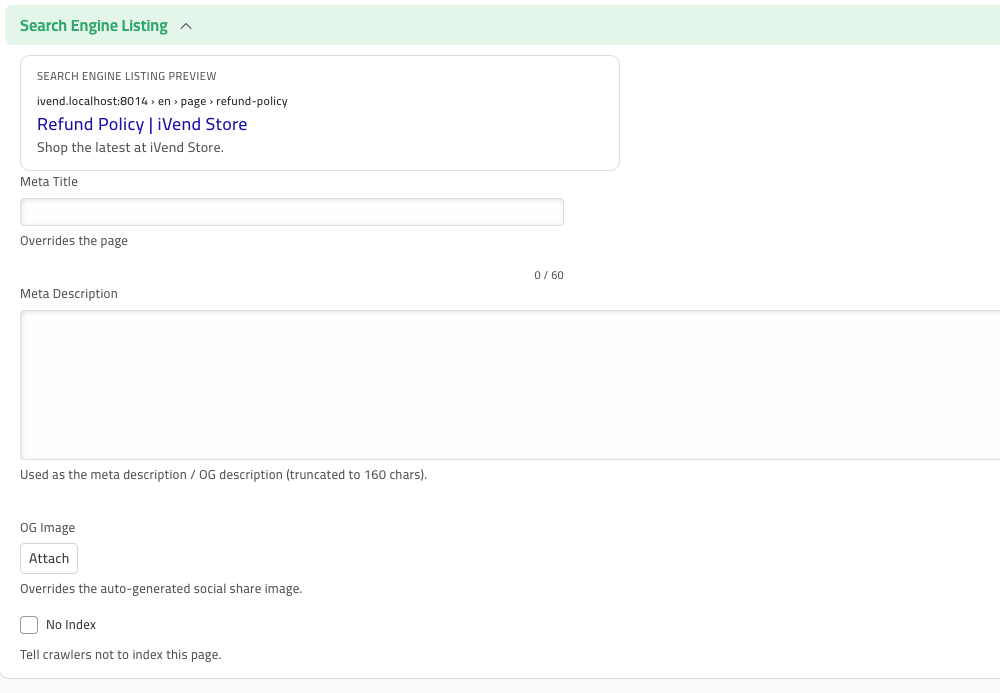
Content / CMS page (Shop Web Page). The same SEO section appears on CMS pages, with the preview reflecting the page's computed title and route.
2. The "Search engine listing" editor
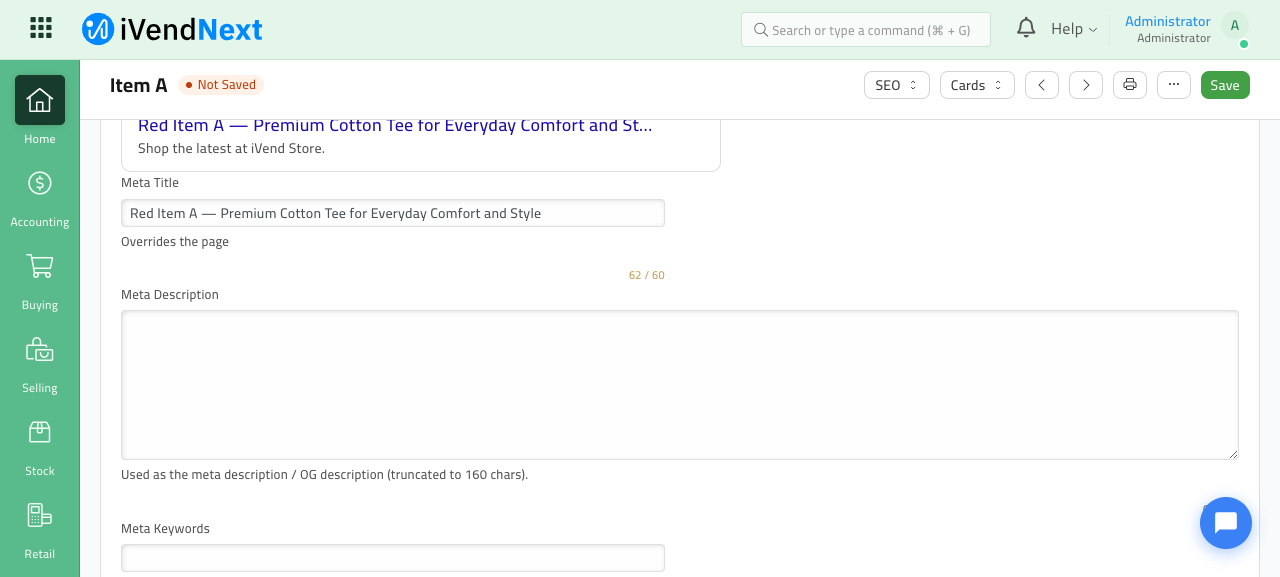
Every SEO section ships with a Shopify-style Search Engine Listing editor: a live Google-snippet preview card plus character counters as you type.
- The preview card shows the rendered URL, the title (blue), and the description exactly as Google would display them.
- The title counter targets ~60 characters and the meta description counter targets ~160.
- The counter turns amber once you go over the recommended limit, so you can keep snippets within display range at a glance.
3. Homepage SEO
Homepage SEO is configured in Lifestyle Settings → SEO tab:
- SEO Title Template — supports
{title}(the page title) and{store}(your store name), e.g.{title} | {store}. - Default Meta Description — fallback description for any page that doesn't set its own.
- Default Share Image — fallback OG / Twitter image (1200×630 recommended).
- Homepage Meta Title / Meta Description / OG Image — the homepage's own values; blanks fall back to the defaults above.
These settings apply across all storefront themes automatically — you don't reconfigure SEO when you switch themes.
4. Product listing SEO
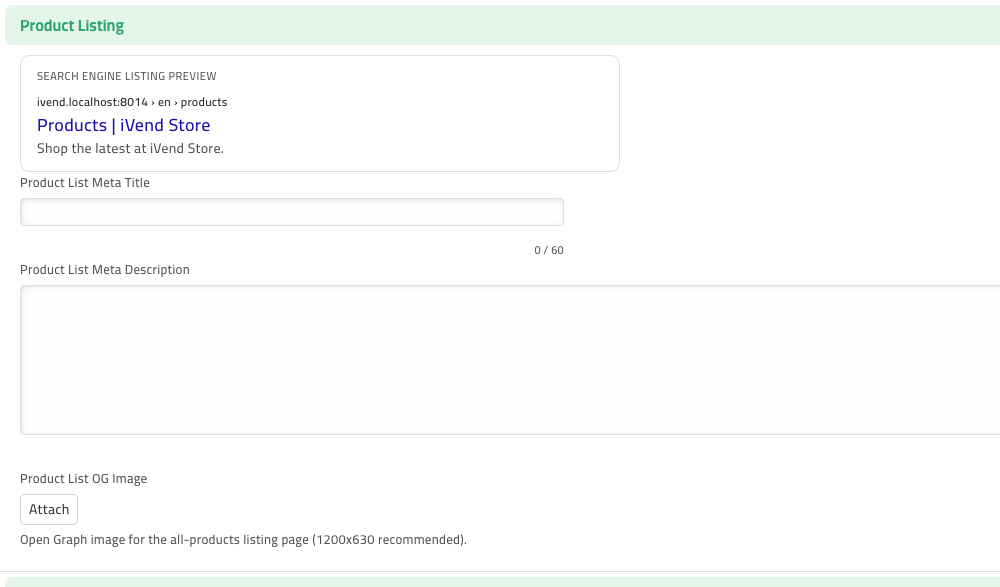
The all-products listing page (/products, with no category filter) has its own global SEO settings in the Product Listing group of Lifestyle Settings → SEO tab:
- Product List Meta Title — the meta/browser title for the bare
/productspage. - Product List Meta Description — its meta / OG description.
- Product List OG Image — its Open Graph / Twitter share image (1200×630 recommended).
Leave these blank and the page falls back to the computed default Products | <store>.
The three-level listing SEO model
Listing SEO resolves at three independent levels, so it's always clear which setting controls which page:
| Level | Page | Configured in |
|---|---|---|
| All-products page | /products (no category) |
Lifestyle Settings → SEO tab → Product Listing (global) |
| Category listing | /products?category=<slug> |
Each Ecommerce Category's SEO section |
| Individual product | the product detail page | Each Style Attribute Variant's SEO section |
A selected category's per-category overrides always win for /products?category=<slug>; the global Product Listing settings apply only to the bare all-products page.
5. Static pages SEO
The Static Pages group of the SEO tab configures the meta title, description, and OG image for the Find Store and Contact Us pages. Blank fields fall back to the global defaults.
In addition, the Find Store page automatically emits LocalBusiness structured data built from the store's contact fields (address, phone, etc.), helping it qualify for local rich results.
6. Structured data (JSON-LD)
iVend auto-emits the following Schema.org JSON-LD, with no configuration required:
- Product — on product detail pages (Style Attribute Variant).
- CollectionPage — on collection / category listing pages.
- BreadcrumbList — the page's breadcrumb trail.
- Organization — site-wide brand/identity markup.
- WebSite — site-wide, including a
SearchActionso search engines can surface a sitelinks search box. - LocalBusiness — on the Find Store page, from the store's contact fields.
For advanced cases, each Style Attribute Variant has a per-variant JSON-LD override field, plus a Generate JSON-LD helper that pre-fills valid markup you can then edit.
7. Social, canonical & hreflang
Emitted on every storefront page automatically:
- Open Graph & Twitter cards — title, description, image, and type, so links unfurl correctly on social platforms. The Twitter handle is set in the SEO tab.
- Canonical URLs — a
rel="canonical"tag pointing at the page's preferred URL, preventing duplicate-content issues. - hreflang alternates —
enandaralternate links so search engines serve the correct language variant.
8. robots.txt
A robots.txt is auto-generated on migrate. It is marker-guarded: if you hand-edit the file, your version is detected and never overwritten by future migrations.
The generated file:
- Blocks backend / admin URLs.
- Blocks faceted-navigation, cart, and account URLs to preserve crawl budget.
- Points crawlers at the XML sitemap.
9. XML sitemap
/sitemap.xml is a sitemap index, not a flat list. It links to paginated child sitemaps such as /sitemap-products-1.xml, each capped at 50,000 URLs (the protocol limit).
The sitemap covers:
- Products, collections, and content pages.
- Both languages (en / ar).
- Only indexable pages — anything marked No Index is excluded.
This design scales to very large catalogues (hundreds of thousands of products) without producing an oversized single file.
10. Automatic noindex on transactional pages
Cart, checkout, and account pages are automatically marked noindex. These pages have no search value and are kept out of the index without any configuration.