Customer Delivery Options
Customer Delivery Options
Customer Delivery Options brings an Amazon-style shipping selector to the storefront checkout. The store admin defines a handful of delivery choices — e.g. Free / Standard / Express — each mapped to a real AfterShip carrier service. The customer picks one at checkout, and when the order ships, the label is bought with exactly the service they paid for.
Pricing is live-rate-first: once the customer saves their delivery address, checkout fetches real carrier rates from AfterShip for that exact address, so shipping prices vary by location. Each option's final price is the live carrier rate (converted to your store currency), plus your Markup %, plus a flat Handling Fee. If the carrier doesn't answer in time — or returns no usable quote — the option falls back to a backup price: either a flat Backup Charge, or a tiered price from an optional Backup Shipping Rule. Either way, a missing rate never breaks checkout or drops an option. Whichever way the price was produced, the real carrier cost is still recorded on the shipment record when the label is bought, so the margin on every order stays visible (see How the money flows).
graph TD
    Admin[Admin configures options<br/>AfterShip Settings] --> Addr[Customer saves<br/>delivery address]
    Addr --> Rates[Live carrier rates fetched<br/>for that address]
    Rates --> Checkout[Customer selects<br/>an option]
    Checkout --> Fee[Delivery Charges line<br/>on the cart]
    Fee --> Pay[Payment / COD]
    Pay --> SO[Sales Order<br/>choice + carrier snapshot]
    SO --> DN[Delivery Note]
    DN --> Ship[Shipment buys label<br/>with the chosen service]
Setup
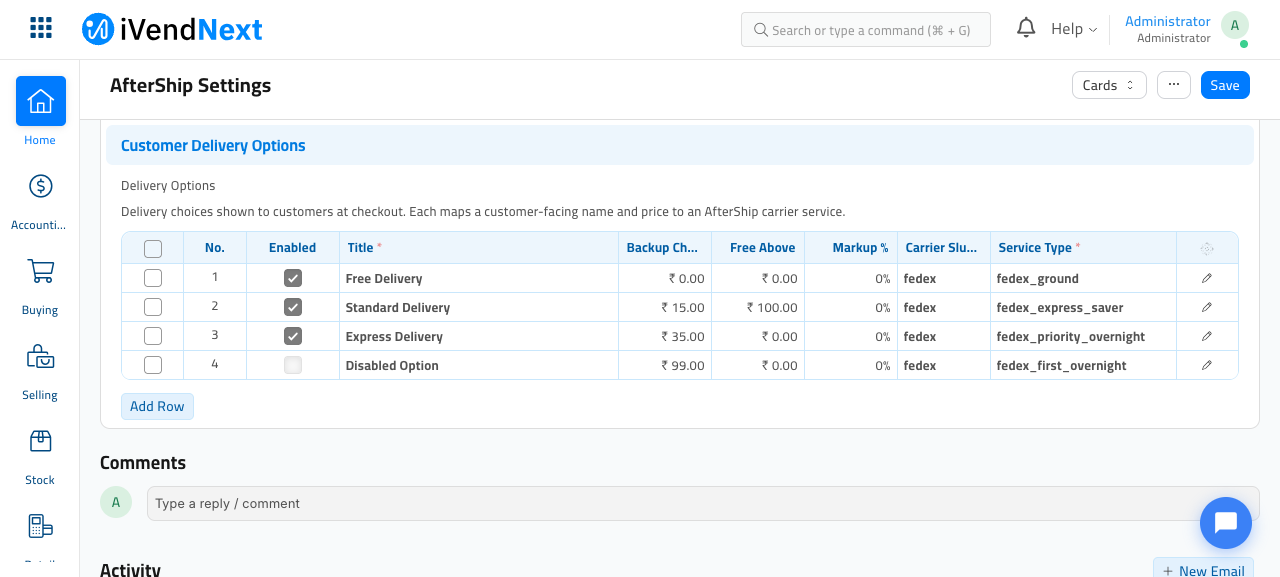
Type AfterShip Settings in the search bar at the top of the desk and open it, then scroll to the Customer Delivery Options section. On a fresh store the table starts empty — click Add Row for each choice you want to offer. Each row is one option the customer can pick at checkout:
| Column | What it does |
|---|---|
| Enabled | Only checked rows are offered at checkout. Disabled rows never show — use this to stage or retire an option without deleting it. |
| Title (required) | The customer-facing name, e.g. Express Delivery. Titles must be unique — the title is the identifier saved on the order. |
| Description | Shown under the title at checkout, e.g. Delivered in 1–2 business days. Use it for the delivery ETA. |
| Backup Charge | The flat fallback price, charged when a live rate is unavailable (carrier timeout, no quote for the address, or no pickup address to quote from) and no Backup Shipping Rule is set — or a rule is set but no tier covers the cart. 0 keeps the option free in that case. Always keep it set as a safety net (see Tiered pricing). |
| Free Above | Cart total strictly above which the option becomes free — it applies on top of both the live price and the flat Backup Charge. Example: Free Above = 100 → a 100.00 cart is still charged, a 100.01 cart ships free. Leave 0 to always charge. Ignored when a Backup Shipping Rule is linked — the rule owns its own free tiers. |
| Markup % | Percentage added on top of the live carrier rate, e.g. 10 turns a 20.00 carrier rate into 22.00. |
| Handling Fee | Flat amount added after the markup — packaging, labour, and so on. |
| Backup Shipping Rule | Optional. Links an ERPNext Shipping Rule so the backup price is tiered by cart value or weight instead of the single flat Backup Charge. See Tiered pricing with a Backup Shipping Rule. |
| Carrier Slug (required) | The AfterShip courier slug the label is bought with, e.g. fedex. |
| Shipper Account ID (required) | The connected carrier account that quotes the rates and buys the label — find its ID in your AfterShip dashboard (under your carrier/shipper account settings). |
| Service Type (required) | The exact carrier service, e.g. fedex_priority_overnight. Its live rate prices the option at checkout, and it's the service the shipment ships with. |
Most fields are edited right in the grid, but Description, Handling Fee, Backup Shipping Rule, and Shipper Account ID don't appear as grid columns — click the edit (pencil) icon at the end of a row to expand it and fill them in. In the expanded row, the carrier fields sit together in the AfterShip Carrier Mapping section. A row won't save without its required fields.
The three carrier-mapping fields (Carrier Slug / Shipper Account ID / Service Type) are internal only — they are never sent to the browser. The customer only ever sees the title, description, and price.
When you're done, click Save (top right). If two rows share the same title, the save fails with Delivery option title … is used more than once — rename one of them and save again.
Live-rate prerequisites
Two other fields in AfterShip Settings drive the live pricing:
- Default Pickup Address — the ship-from address rates are quoted from. If it's empty, your company's default address is used instead; with neither set, live rates can't be quoted and every option shows its Backup Charge.
- Rates Timeout (Seconds) — how long checkout waits for the carriers before falling back to Backup Charges (default 10).
A Default Parcel Template (the box the cart is quoted in) must also be set — without one, live rates can't be quoted and Backup Charges apply.
Also set Charge Account Head in Lifestyle Settings before enabling paid options — the delivery fee is booked against that account, and checkout stops without it (see How the money flows).
Tiered pricing with a Backup Shipping Rule
By default an option's backup price is a single flat Backup Charge. If you'd rather the backup price vary in bands — by cart value or by weight — link the option to an ERPNext Shipping Rule instead. A rule lets you say, for example, ₹100 under 500, ₹50 from 500 to 1000, free above 1000, using ERPNext's own native shipping tiers. It's entirely optional and additive: leave Backup Shipping Rule blank to keep the simple flat Backup Charge + Free Above you already have.
When a rule is linked, this is how the price is chosen:
- A live carrier rate still wins whenever one comes back for the customer's address — the rule only ever prices the backup.
- With no live rate, the rule's matching band for that cart is charged (matched on cart value, or on weight if the rule is weight-based).
- The rule owns its own free tiers, so the option's Free Above field is ignored while a rule is linked — set your free threshold as a band inside the rule instead.
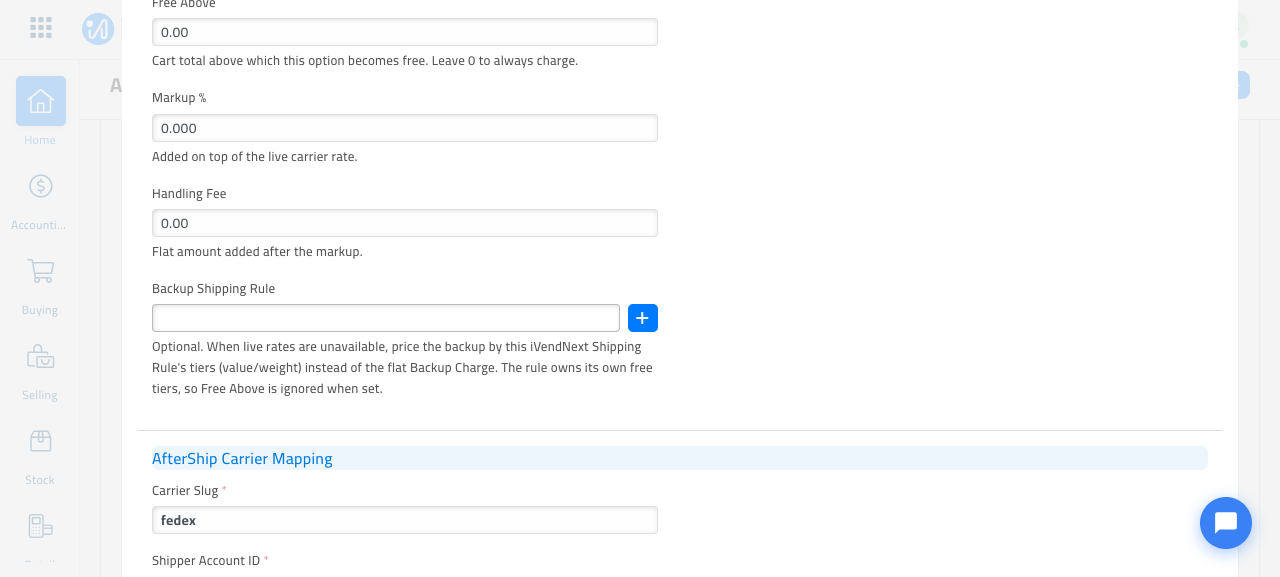
To set one up:
- In the ERPNext desk, type Shipping Rule in the search bar and open the list. Create a new rule (or reuse one): give it a name, set Calculate Based On to Net Total (cart value) or Net Weight, add a row per band under Conditions (each with a From/To range and its Shipping Amount), and pick the Account the charge should post to. Save it.
- Back in AfterShip Settings → Customer Delivery Options, expand the option's row (the pencil icon), set your rule in the Backup Shipping Rule field, and Save.
Always keep a Backup Charge set as the safety net. A linked rule should cover the whole range — include an open-ended top band (a condition with no upper limit) so every cart matches something. If a cart falls outside every band, the option deliberately charges the flat Backup Charge rather than shipping free by accident. The same flat charge kicks in if the rule is later disabled or deleted, or (for a weight-based rule) the cart has no weight.
Accounting. When a rule is linked, the delivery fee posts to that Shipping Rule's Account, not the Lifestyle Settings Charge Account Head. That's handy if you want each shipping method's income tracked in its own account; options without a rule still post to the Charge Account Head as usual.
Multi-currency. Shipping Rule bands are defined in your company currency; at checkout the matched amount is converted to the store/checkout currency automatically, so shoppers always see the price in their own currency.
What the customer sees
The shipping options appear after the address step. Until the customer saves a delivery address, checkout shows Enter your delivery address to see shipping options. Once the address is saved, a brief loading spinner shows while the carrier rates are fetched — the first fetch for an address can take a few seconds; after that, prices come straight from a short-lived cache. In the rare case the rates request itself fails (a network hiccup), checkout shows Shipping options are temporarily unavailable. until the customer retries.
With the address in place, checkout shows a Shipping method radio group under Home delivery — title, ETA description, and price per option. Any option whose final price works out to zero simply displays Free:
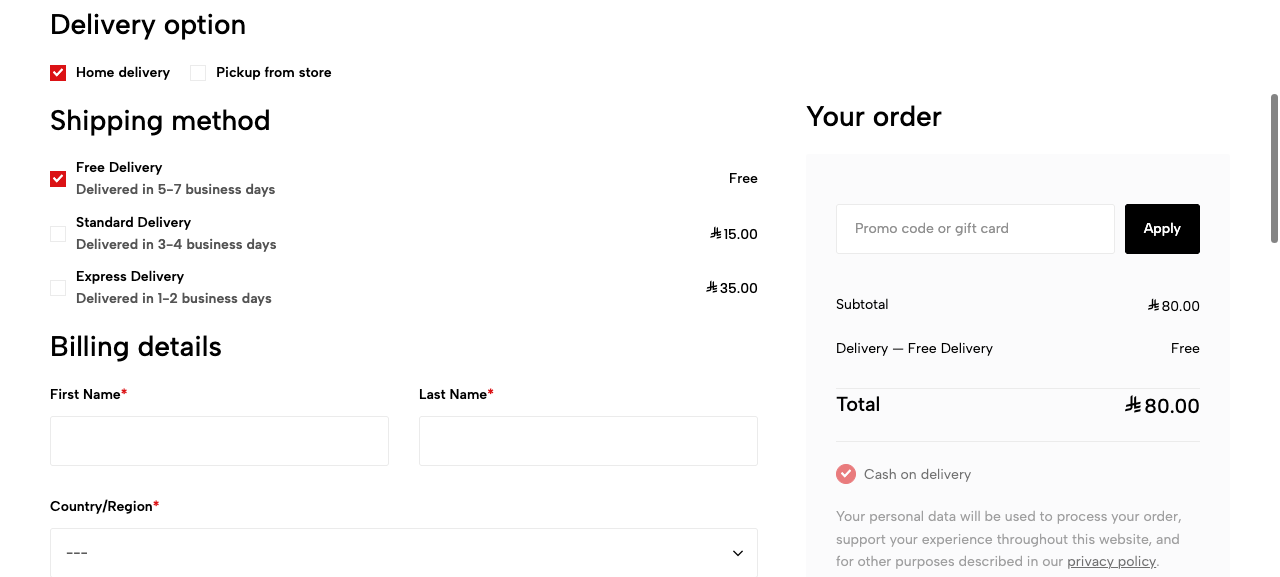
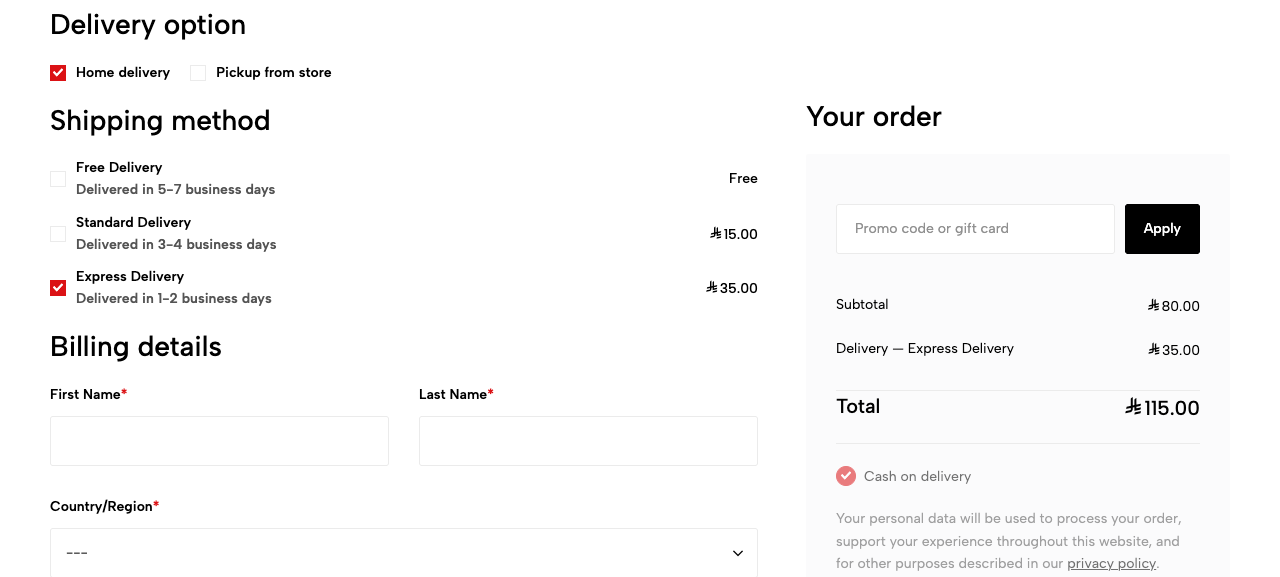
Selecting an option updates the order summary live: the Delivery row shows Delivery — <option> with its amount, and the total follows immediately.
Switching to Pickup from store hides the shipping methods entirely and drops any delivery fee — a picked-up order never pays for shipping:
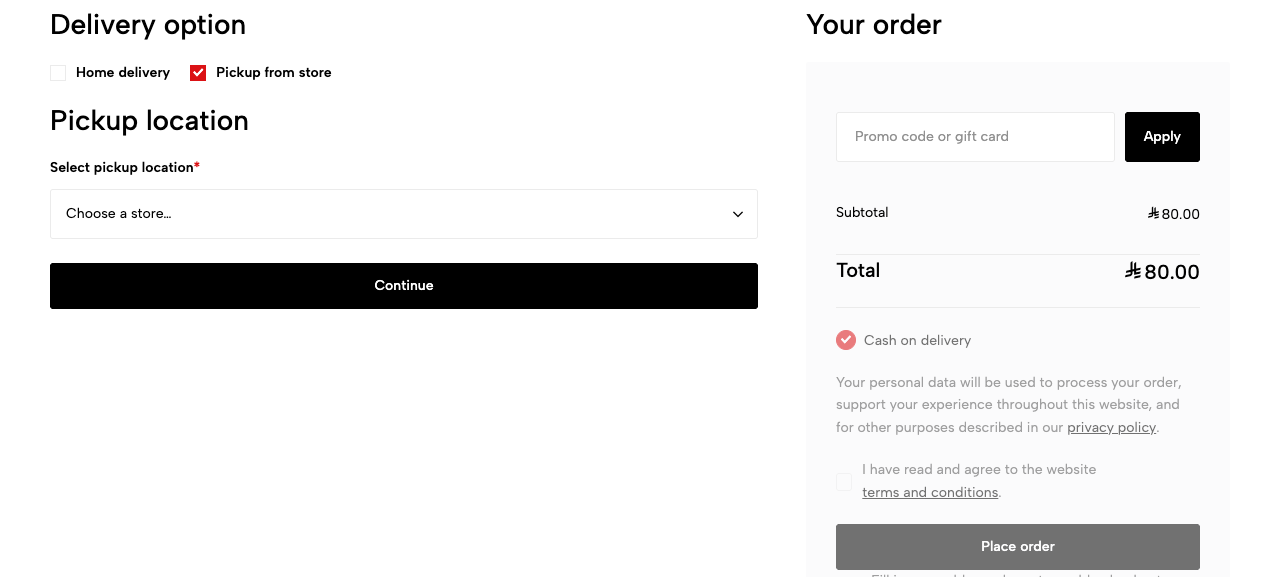
If no options are configured (or the connector app isn't installed), checkout quietly falls back to the flat Lifestyle Settings shipping rule — the legacy behaviour is unchanged.
How each price is worked out
For every enabled option, checkout asks the option's carrier for a live quote to the customer's address, then applies your Markup % and Handling Fee on top. No usable quote in time? The option falls back to its backup price — a Backup Shipping Rule's matching tier when one is linked, otherwise the flat Backup Charge. Either way a missing rate never drops the option from the list. Free Above then applies to the flat-charge path (a linked rule handles its own free tiers):
graph TD
    Addr{Delivery address<br/>saved?} -->|No| Wait[Enter your delivery address<br/>to see shipping options]
    Addr -->|Yes| Quote{Live quote received<br/>within the timeout?}
    Quote -->|Yes| Live[Carrier rate + Markup %<br/>+ Handling Fee]
    Quote -->|No| Rule{Backup Shipping<br/>Rule linked?}
    Rule -->|No| Flat[Flat Backup Charge]
    Rule -->|Yes| Band{Cart matches<br/>a tier?}
    Band -->|Yes| Tier[Rule tier amount]
    Band -->|No| Flat
    Live --> FreeQ{No rule, and cart<br/>above Free Above?}
    Flat --> FreeQ
    Tier --> Price[Price shown at checkout]
    FreeQ -->|Yes| Free[Free]
    FreeQ -->|No| Price
Store pickup skips all of this — no shipping is quoted or charged.
How the money flows
- The price is computed and stored server-side. The fee line comes from the same server-side rate table the selector showed — the browser never supplies an amount. If the chosen option has changed since it was picked (renamed or disabled), its backup price applies so payment always goes through.
- The chosen option's fee is added to the order as a "Delivery Charges" fee line, booked against the Charge Account Head from Lifestyle Settings (the same pattern as the COD charge). That account must be set, or checkout stops with Please select a valid account for delivery charges. If the option has a Backup Shipping Rule, the fee posts to that rule's Account instead — so you can route each shipping method to its own income account.
- The delivery option replaces the standard flat shipping charge — the two never double-charge. Re-selecting or changing the option replaces its own fee line rather than stacking fees.
- Free is free. If the option's final price is 0 (or the cart clears its Free Above threshold), no fee line is added at all.
- Margin stays visible. What the customer paid lives on the order as the Delivery Charges line; the carrier's real cost is written to the shipment record when the label is bought. Margin per order = charged price − carrier cost.
Fulfillment
The customer's choice travels with the order all the way to the label:
- At checkout, the choice plus a snapshot of its carrier mapping (slug / service type / shipper account) is saved on the cart Quotation. Snapshotting at order time means later edits to AfterShip Settings cannot change an already-placed order.
- Placing the order copies the choice to the Sales Order automatically.
- When a Shipment is created from the order's Delivery Note, the connector applies the snapshot: carrier, service, and shipper account come from the customer's choice, and the carrier service field shows the option title.
- The shipment is locked to the paid service: the auto-cheapest toggle can never override a service the customer paid for.
- Return legs always use the admin defaults from AfterShip Settings — the customer's paid choice covers the forward leg only.
Orders placed without a delivery option (store pickup, or none configured) keep the existing behaviour: the shipment starts from the default carrier and can still be rate-shopped or auto-cheapest-ed as usual.
Technical notes
- Endpoints
ivendnext_ecommerce.api.checkout.get_checkout_shipping_rates— whitelisted. Prices every enabled option for the current cart and returns{"rates": [{"title", "description", "amount", "is_live_rate", "is_free"}], "address_missing"}; with no shipping address on the cart it returnsrates: []andaddress_missing: true. Rates are computed server-side (aftership_connector.api.checkout.quote_delivery_options: one rate-shop across the options' shipper accounts, then per-option live rate × (1 + markup %) + handling fee in the store currency; on any miss the backup — a linked Shipping Rule's tier or the flatcharge_amount— never throws) and cached per cart for 30 minutes, invalidated whenever the shipping address, items, or total change.aftership_connector.api.checkout.get_delivery_options— whitelisted (logged-in users only). Returns the enabled options in a customer-safe shape (title,description, backupcharge_amount,free_above); carrier internals never reach the browser.ivendnext_ecommerce.api.checkout.set_delivery_option— whitelisted. Persists the choice + carrier snapshot on the cart quotation, recomputes the charges, and returns the new totals. Called by the checkout page on select; accepts an empty value to clear the choice (store pickup clears it via the address update).
- Settings fields:
default_pickup_address(Link, ship-from address for checkout quotes; falls back to the company's default address) andrates_timeout_seconds(Int, default 10) on AfterShip Settings. - Tiered backup pricing: each delivery option row has an optional
shipping_rule(Link → Shipping Rule).aftership_connector.api.checkout.backup_amountprices a linked rule via itsconditionsbands —Fixed/Net Weight/Net Total— matching value againstbase_net_total(weight matches unconverted) and converting the band amount back to txn currency byconversion_rate. A cart outside every band, a disabled/deleted rule, or a weight-based rule with no cart weight all fall back to the flatcharge_amount(never free by accident);free_aboveis skipped whenever a rule is linked.delivery_charge_account(title)returns the rule'saccountfor the fee row, elseNoneso the caller uses the Charge Account Head. - Custom fields (fixtures, on both Quotation and Sales Order):
custom_delivery_option,custom_shipping_slug,custom_shipping_service_type,custom_shipping_shipper_account_id. - Charge row:
ivendnext_ecommerce.api.payments.set_delivery_option_chargesappends the Actual "Delivery Charges" tax row and nulls the quotation's ownshipping_rule; the amount comes from the same server-computed (cached) rates the selector showed, with backup pricing as the safety net for a stale selection; the account isdelivery_charge_account(title)(the option's linked Shipping Rule account) or the Lifestyle Settings Charge Account Head. The legacy Lifestyle Settings shipping-rule path stays as the fallback when no option is set. - Shipment side:
aftership_connector.shipment.set_carrier_defaultsprefers the Sales Order snapshot (apply_customer_delivery_choice) and setscustom_rate_selected = 1; without a snapshot it falls back to the AfterShip Settings defaults. - Soft dependency: the ecommerce app resolves the connector through an installed-apps guard. Without the connector installed, checkout falls back to the flat Lifestyle Settings shipping rule — no hard import, nothing breaks.